 Georaf Team
View GeoJSON Online: 5 Free Tools to See What Is in Your File
You have a GeoJSON file and want to see it on a map without installing anything. Five free online viewers compared, with honest pros and cons.
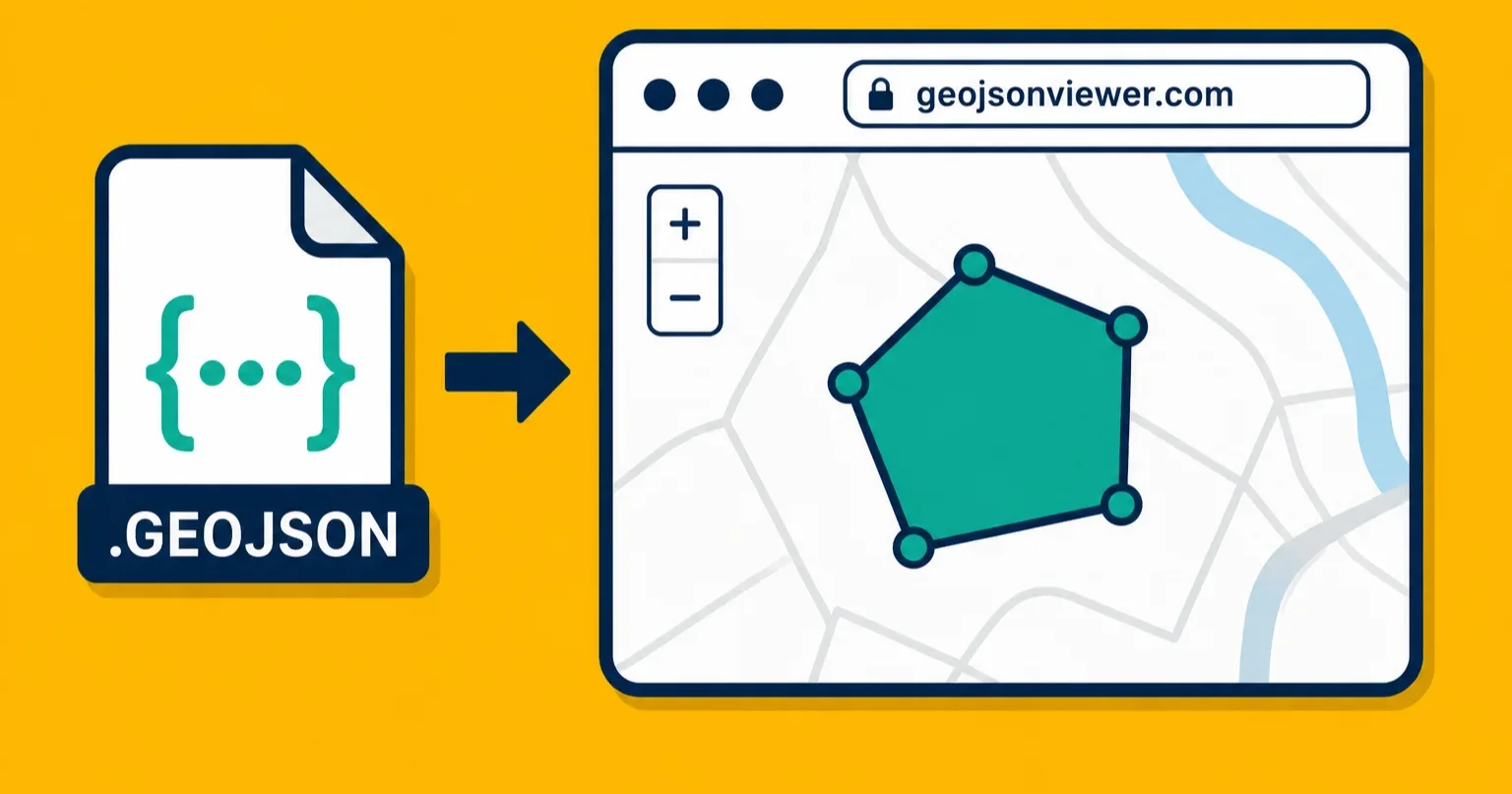
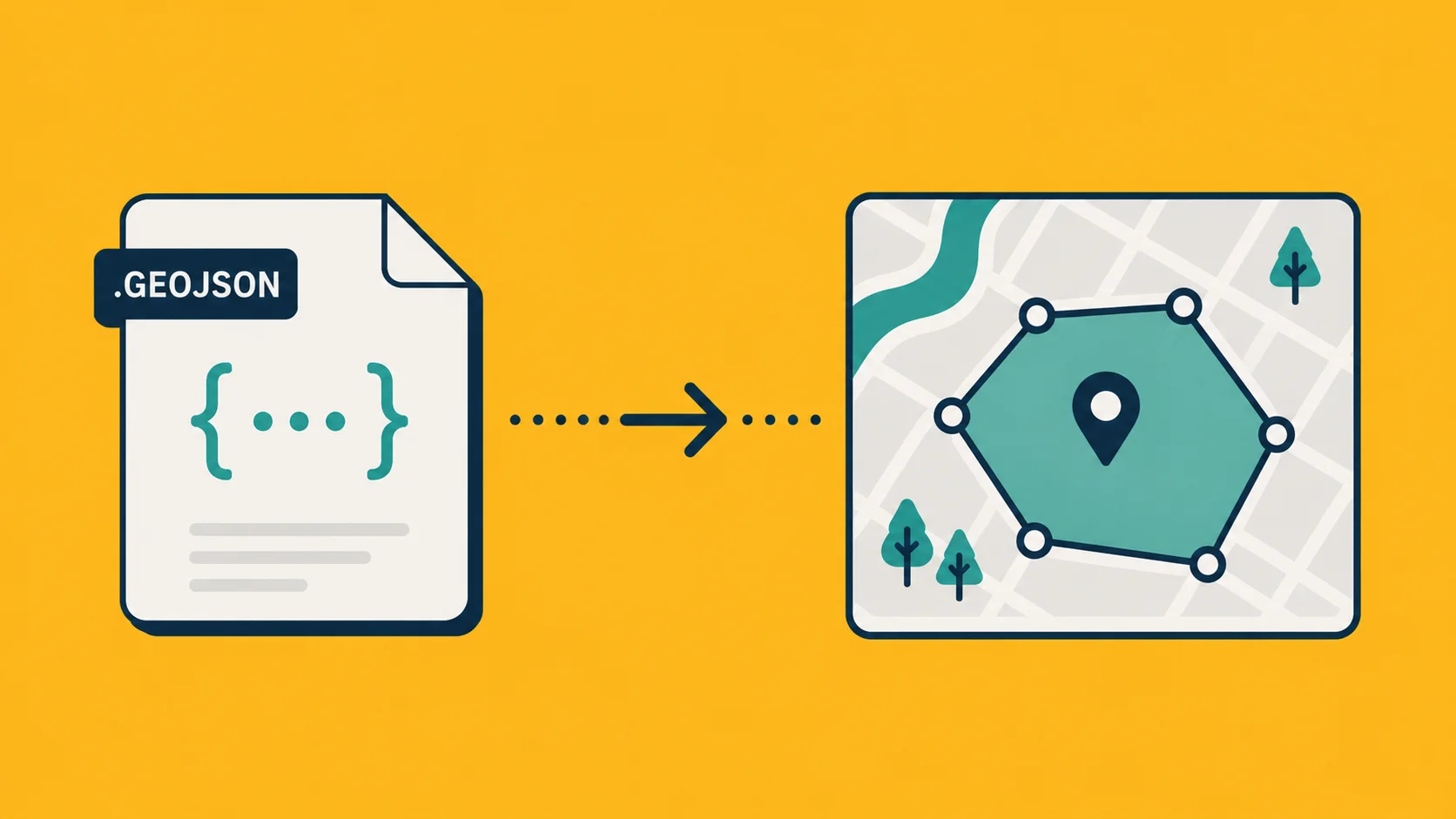
You have a GeoJSON file. Maybe someone sent it, maybe you downloaded it, maybe you exported it from a tool and want to sanity-check what's inside before doing anything with it. You want to see it on a map, right now, without installing QGIS or learning anything new.
Good news: there are several free, browser-based ways to do this. Bad news: they are not all equally good, and the one you reach for first might not be the right one for your file.
Here are five options, with honest pros and cons, so you can pick the one that actually works for your situation.
1. Georaf
Best for: viewing, validating, and converting in one step.
Go to georaf.com, drag your file onto the upload zone, and it appears on a map. No account needed. No file-size cap that will leave you staring at a spinner.
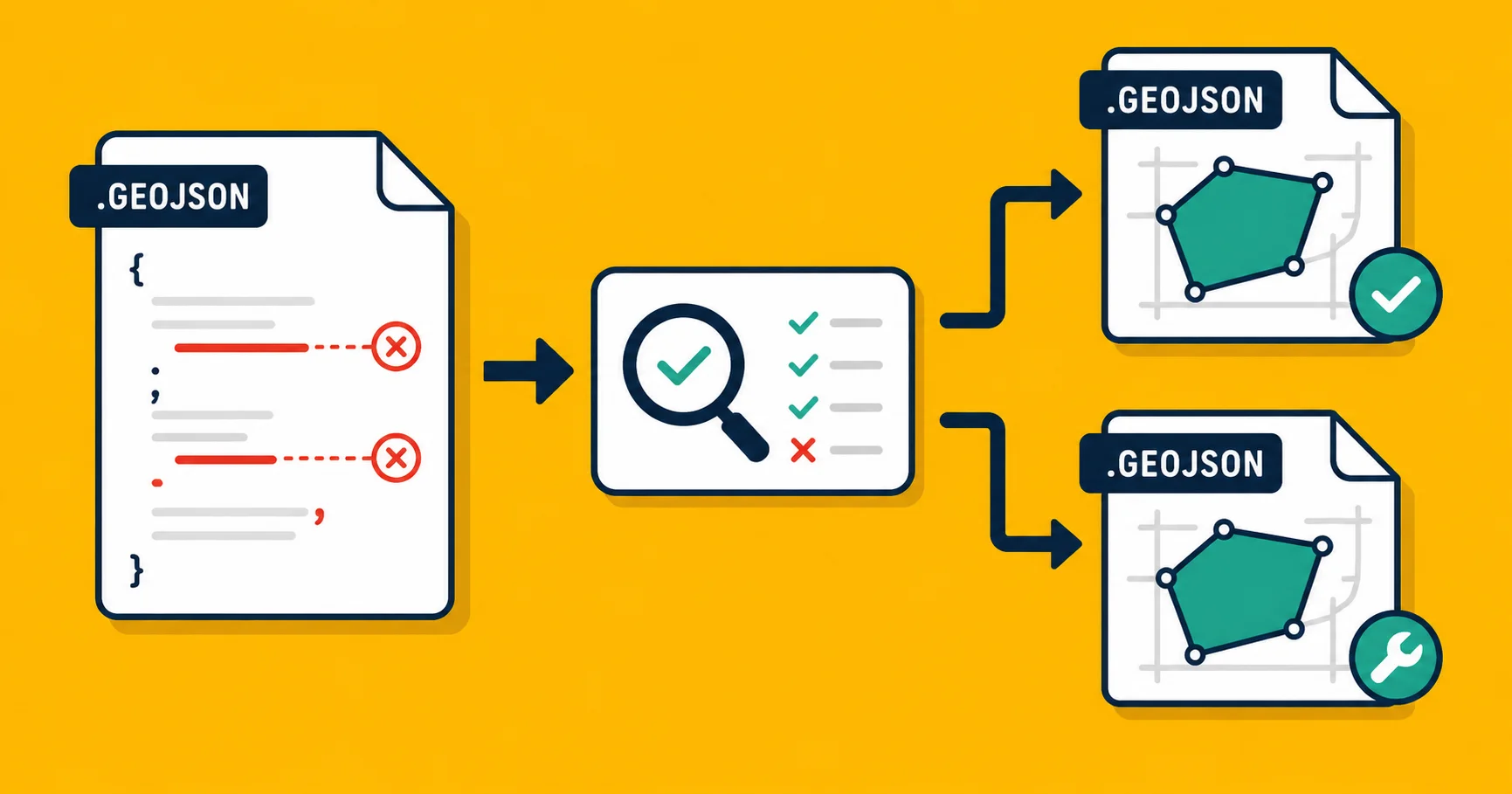
The difference from a pure viewer is that Georaf also tells you if anything is wrong with the file: entries with geometry that doesn't close correctly, coordinates that look like they belong in a different coordinate system, outlines that cross themselves. Most viewers just silently skip broken entries and show you an incomplete map without explanation. Georaf surfaces the problems in plain English and offers one-click fixes for the common ones.
If you also need to convert the file to a Shapefile, KML, or another format, that's in the same flow. You don't need a separate tool.
The one thing it's not: an editor. If you need to manually draw new entries or move vertices on the map, you want geojson.io instead.
2. geojson.io
Best for: small files where you also want to edit entries or write GeoJSON by hand.
geojson.io is the classic. You drop a file on the left panel and it draws on the map. You can also click the map to draw new points, lines, and polygons, and the raw GeoJSON updates in real time on the right side of the screen. It's been the go-to for quick "let me just see this thing" checks for years.
The honest limits: it starts to struggle on files with more than a few hundred entries. Large files either load slowly or cause the browser to become unresponsive. There's also no validation. If your file has broken geometry, you'll see a partial map with no explanation of what's missing.
For small files and quick edits, it's excellent. For larger files or any situation where you need to know if the data is actually correct, it's not the right tool.
3. Mapshaper
Best for: large files, and anything where you need to simplify or inspect the data more deeply.
Mapshaper is a browser tool built around processing large geographic datasets. Drop a file on it and it loads fast, even for files with tens of thousands of entries. The map is interactive and you can pan and zoom without it grinding to a halt.
It also has a command console built into the page. If you know commands like -simplify or -filter, you can run them directly in the browser. For people who need to do more than just view, that's powerful.
The honest limit: the interface is not obvious if you haven't used it before. It's a tool built for people who work with geographic data regularly, and it shows. If you just want to see what's in a file without reading documentation, it's more friction than you probably want. The learning curve is real.
For large files where the other tools time out, it's the right answer. For a quick one-off check, it's overkill.
4. GitHub
Best for: files that are already in a GitHub repository.
If your GeoJSON file is in a GitHub repository, you don't need a viewer at all. GitHub renders GeoJSON files automatically when you open them in the file browser. Click the file, and you see a map instead of raw text.
It supports the common geometry types (points, lines, polygons) and handles files of reasonable size well. There's nothing to install or configure. If the file is already on GitHub, this is the fastest option.
The limits: you need a GitHub account to upload files there in the first place, and the map view is read-only. You can't edit, validate, or convert from inside GitHub. It's also not practical if the file isn't already in a repository.
For sharing geographic data with others via GitHub, it's genuinely useful, because the reviewer sees a map rather than a wall of JSON.
5. VS Code with a GeoJSON preview extension
Best for: developers who are already editing the file in VS Code.
If you work in VS Code, you can install an extension like "Geo Data Viewer" or "GeoJSON Preview" and open a preview panel directly in the editor. The map updates as you edit the file. It works offline.
This is the right option if you're editing GeoJSON by hand as part of a development project and want to see the result without switching applications. It's also the only option here that doesn't require a browser or an internet connection.
It's not the right option if you're not already a VS Code user. Installing an editor to view a file is more effort than dropping it on a website.
How they compare
| Tool | Works well on large files | Validation | Editing | Convert to other formats |
|---|---|---|---|---|
| Georaf | Yes | Yes | No | Yes |
| geojson.io | Small files only | No | Yes | Basic |
| Mapshaper | Yes | Partial | Yes (advanced) | Yes |
| GitHub | Medium files | No | No | No |
| VS Code extension | Yes | No | Yes (raw JSON) | No |
Which one should you use?
If you want to see the file and know if it's actually correct: use Georaf. The visual check and the validation happen together, and you get plain-English results when something is wrong.
If you want to edit the file on a map: use geojson.io for small files, Mapshaper for large ones.
If the file is already in a GitHub repo: just click it.
If you're a developer already in VS Code: install a preview extension and stay there.
The most common mistake is using geojson.io on a file with thousands of entries and concluding the file is fine because the map loaded, when actually the browser dropped half the data to keep up. If your file is more than a couple of megabytes, use Georaf or Mapshaper instead.
What if the map looks wrong?
If you drop your file and the map shows nothing, shows entries in the ocean, or shows obviously wrong shapes, the file probably has a problem. The most common ones:
- Coordinates in the wrong order (longitude and latitude swapped)
- Coordinates in a projected system instead of standard GPS coordinates
- Broken geometry (an outline that crosses itself or doesn't close)
A plain viewer won't tell you which of those it is. The Georaf health check will, and explains what to do about it. If you want to dig deeper into what each kind of error means and how to fix it, the validate GeoJSON guide covers all of them.
If the file looks right but you want to share it on a website without building anything, embedding a map without a mapping platform account is also an option worth knowing about.