 Georaf Team
How to Create a Polygon in Google Earth and Export It
Draw a polygon in Google Earth, save it as KML, and convert it to whatever format you need. A step-by-step guide for non-GIS people.
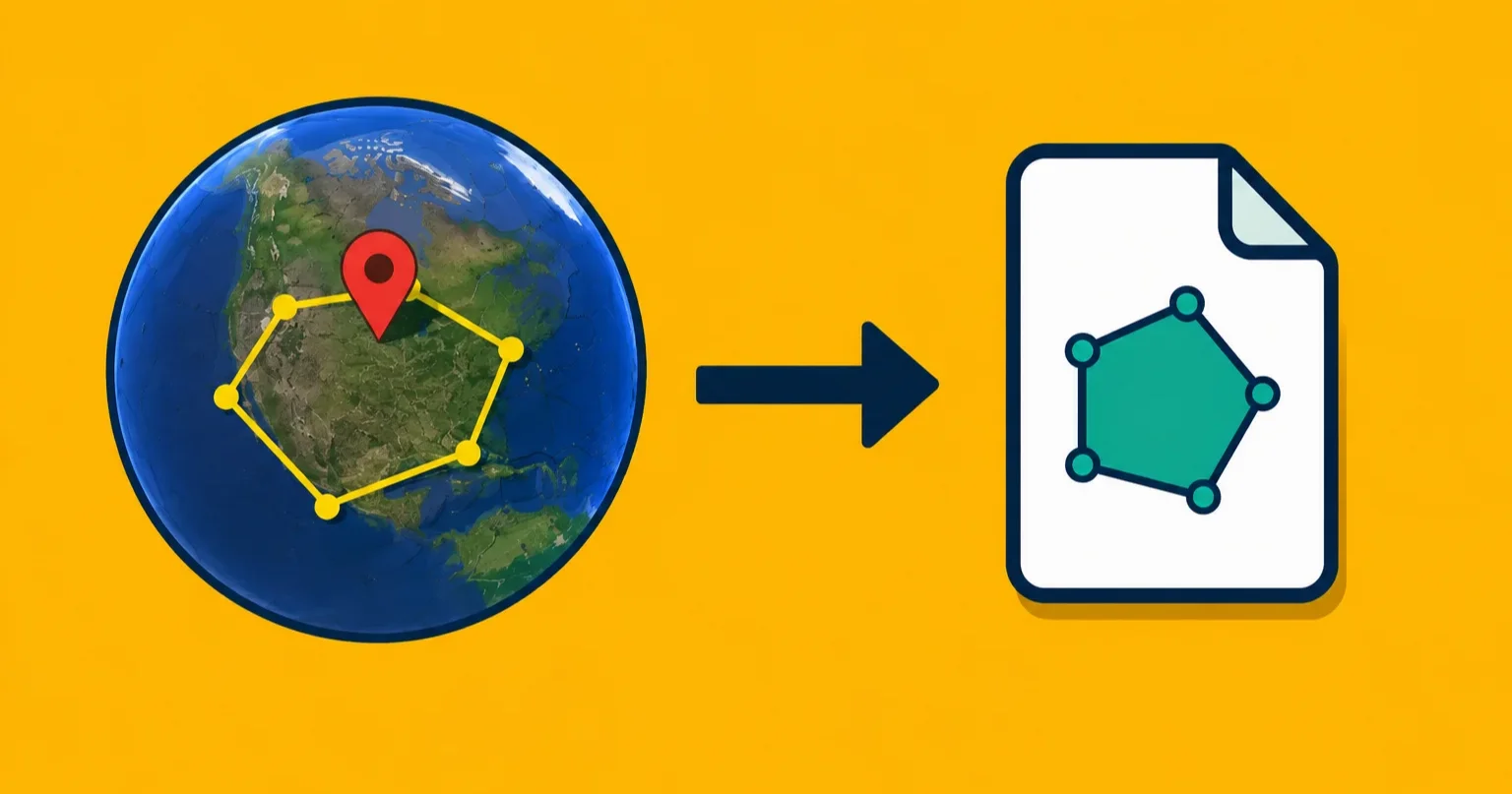
Google Earth is surprisingly good for drawing boundaries on a satellite map. You zoom in on the area you care about, trace an outline, and you have a polygon. The less obvious part is how to get that polygon out of Google Earth and into a format the rest of the world can read.
This guide covers how to draw in both versions of Google Earth (the desktop app and the web version), how to export the result, and what to do with it after.
Google Earth Pro vs Google Earth Web: which should you use?
There are two separate products.
Google Earth Pro is the desktop application you download and install. It's free. It has more drawing tools, better export options, and handles larger files. If you're going to draw anything more than a simple outline, this is the one to use.
Google Earth Web (earth.google.com) runs in your browser. No install required. The drawing tools are more limited: you can draw polygons, but the options for managing, naming, and exporting them are more basic. It works fine for a quick outline on a familiar area.
If you already have Google Earth Pro installed, use that. If you don't and you're just doing a quick one-off boundary, the web version is faster to get started with.
Drawing a polygon in Google Earth Pro
- Open Google Earth Pro. Navigate to the area you want to outline using the search bar or by panning the globe.
- In the top toolbar, click the Add Polygon button. It looks like a small polygon shape, next to the pushpin and path icons. A dialog box will open.
- Give the polygon a name in the dialog. This name will carry over into the file when you export.
- Without closing the dialog, click on the map to start placing points around the boundary you want to draw. Each click adds a vertex. The polygon outline fills in as you go.
- To close the polygon, click back on your starting point. Or just stop clicking and the app will close it for you when you click OK.
- In the dialog, the Style, Color tab lets you set the outline color and fill. This styling information is saved in the KML file, but it gets stripped if you later convert to GeoJSON.
- Click OK. The polygon appears in the "My Places" panel on the left.
One practical tip: Google Earth Pro uses satellite imagery that can be a few years old in some areas. If you're drawing a boundary that needs to reflect recent changes on the ground, check the date of the imagery in the status bar at the bottom of the screen.
Exporting from Google Earth Pro as KML or KMZ
Once your polygon is in the My Places panel:
- Right-click the polygon (or the folder containing it) in the left panel.
- Select Save Place As.
- In the save dialog, choose the file format. The dropdown gives you two choices: KML and KMZ.
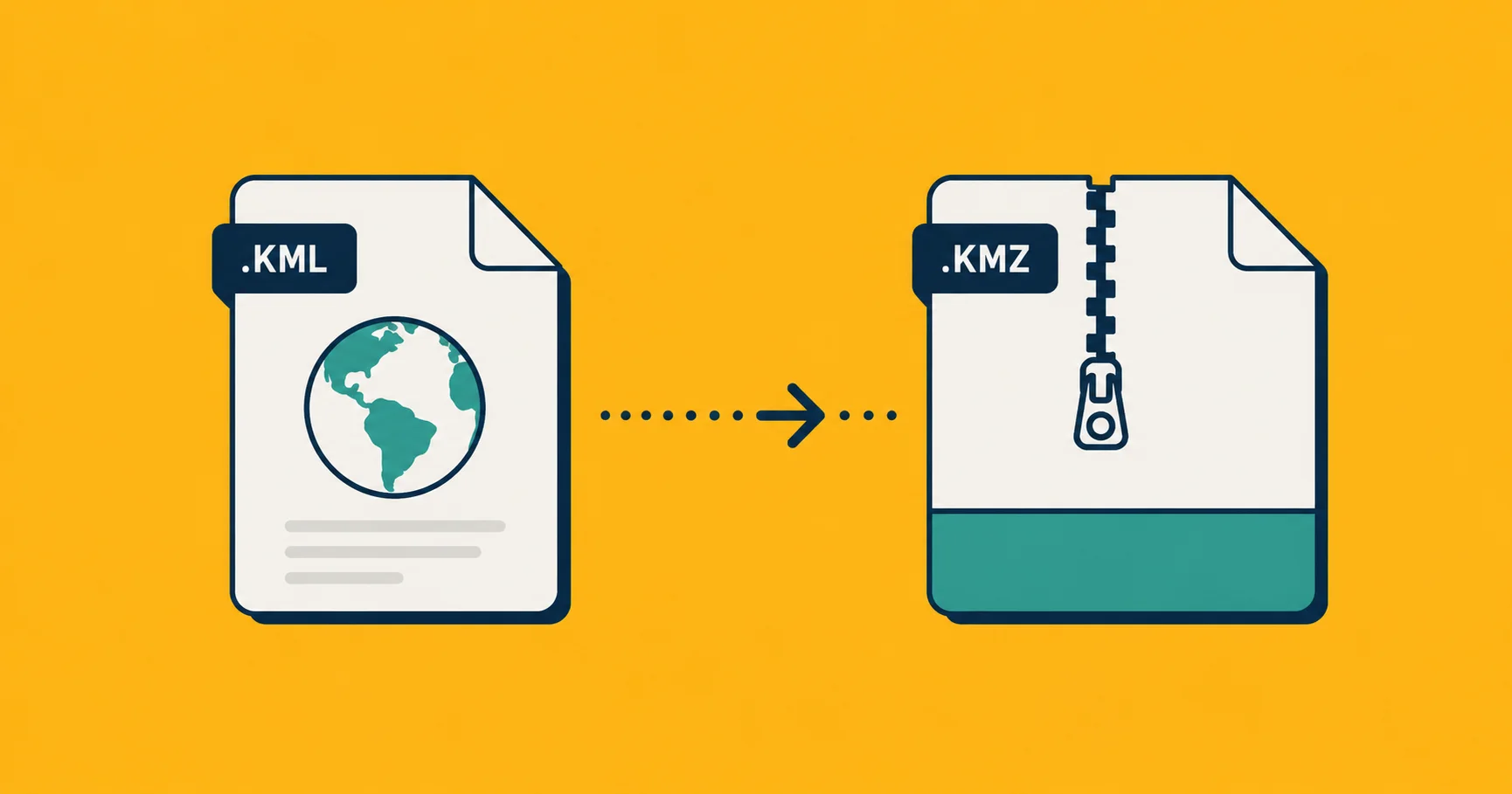
KML is a plain text file containing the coordinates and properties. KMZ is a zipped version of the same thing. If your polygon uses custom icons or embedded images, KMZ keeps those intact inside the zip. For a simple polygon with no attached images, KML and KMZ are effectively the same content. KML is slightly easier to inspect in a text editor if you ever need to.
Save the file somewhere you can find it.
Drawing a polygon in Google Earth Web
If you're using the browser version:
- Go to earth.google.com and navigate to your area.
- Click the pencil icon (Draw) in the left toolbar.
- Select Add line or shape.
- Click around the boundary to place points. Click your starting point again to close the polygon.
- Give it a name and click Save.
The polygon saves to your Projects. To export it, open the three-dot menu on your project in the left panel and select Export as KML. This downloads a KML file.
The web version has no KMZ export option. The exported KML file is a plain text file you can open in a text editor.
What to do with the KML file
A KML file on its own is useful mainly for opening back in Google Earth or sending to someone who also uses Google Earth. For anything else, you'll want to convert it.
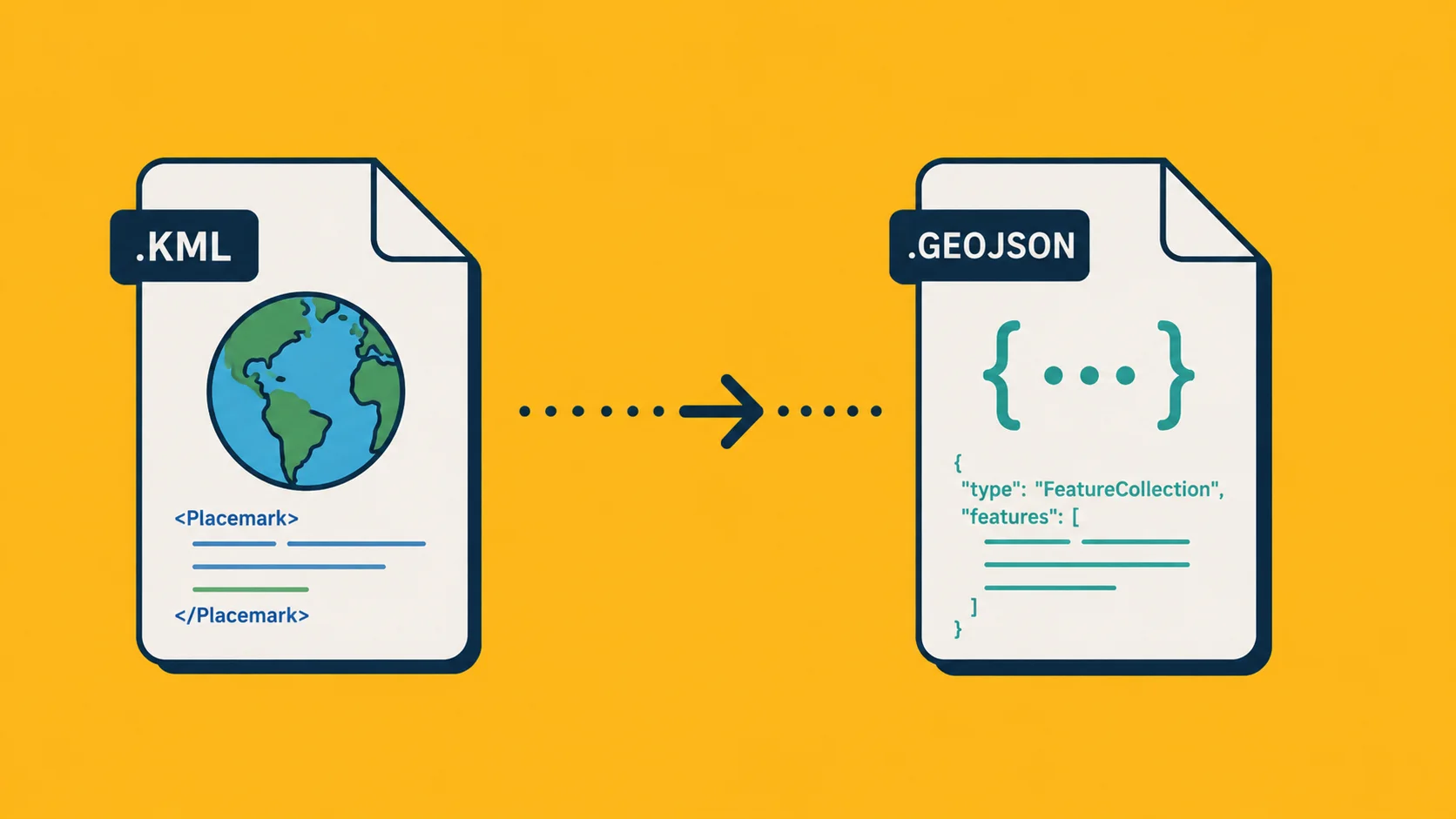
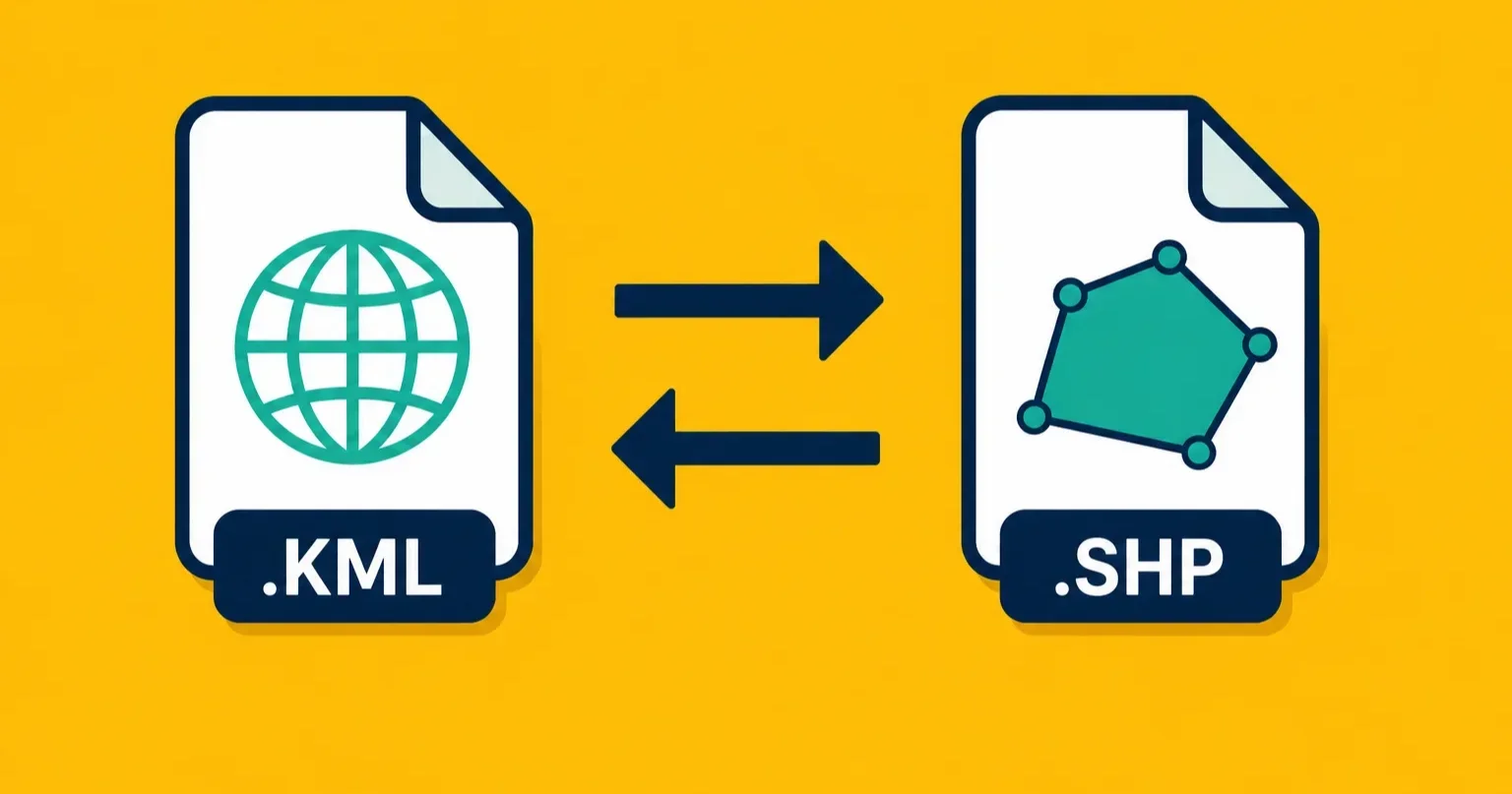
To convert to GeoJSON or Shapefile: drag the KML onto Georaf. Pick the output format, click Convert, and download. The coordinates and any properties (name, description) survive the conversion intact. Styling does not, but for a simple polygon you probably don't have much styling to lose.
GeoJSON is the right output if you're building something on the web, sending the data to a mapping library, or working with a developer. Shapefile is the right output if the recipient is using desktop GIS software like QGIS or ArcGIS. If you're not sure which your recipient needs, GeoJSON is the safer default.
The convert KML to GeoJSON guide covers the conversion in more detail, including command-line options if you need to process files in bulk.
To validate the file: before you send it anywhere, it's worth checking that the polygon actually saved cleanly. Google Earth is generally reliable, but if you had an interrupted session or a file that got moved, the KML can come out malformed. Drag it onto Georaf and the health check will tell you if anything is wrong, in plain English.
To embed it on a website: if you want to put the boundary on a web page so others can view it, the embed map without Mapbox guide covers how to do that without needing a mapping platform account.
The difference between KML and KMZ
Since Google Earth exports both, it's worth knowing which one you actually want. The short version: KMZ is a zip file that contains a KML file (and optionally images or other assets). KML is the raw XML.
For a polygon you drew in Google Earth with no attached images, they're equivalent in terms of content. KML is slightly more portable (everything can read unzipped text). KMZ is smaller on disk and the right choice if your project includes linked images.
If you end up with a KMZ and need to convert it, Georaf and most other conversion tools handle KMZ directly without you needing to unzip it first. The KMZ vs KML article has the full breakdown if you need it.
If you need to draw on-site rather than from a desk
Google Earth is a desk tool. You're looking at satellite imagery and drawing from memory or by zooming in on a screen. If you need to walk a boundary in the field and have GPS track it as you go, that's a different workflow.
Landplot is a mobile app designed for exactly that: walk the boundary, record it, and get a clean polygon you can export. It's more accurate than trying to trace from satellite imagery, especially in areas with dense tree cover or inside buildings where the satellite image doesn't show the ground clearly. You can find it at georaf.com.
A few things that can go wrong
The polygon is in the wrong place. Double-check that you named the right area and that Google Earth was showing up-to-date imagery. If the KML opens elsewhere and the polygon appears in the ocean, the file probably has a coordinate-system issue rather than a placement mistake.
The export option is greyed out. This sometimes happens in Google Earth Pro if the polygon is inside a folder that has special sharing settings. Try moving the polygon to "My Places" directly and then exporting.
The KML converts but the polygon has extra vertices or looks jagged. This is normal if you placed many points while drawing. You can simplify the polygon during or after conversion using Georaf or Mapshaper.
The file is KMZ and the recipient can't open it. Convert it to GeoJSON or Shapefile first. A KMZ is not a standard format outside Google's ecosystem.
Wrapping up
Drawing a polygon in Google Earth takes about two minutes once you know where the button is. Exporting as KML takes another thirty seconds. The part people get stuck on is what to do with the file afterward.
For most workflows, the answer is: drag it onto Georaf, pick the output format your recipient needs, and send that. The conversion is free, handles both KML and KMZ, and tells you if anything is broken in the file before you pass it on.