 Georaf Team
How to Embed an Interactive Map on Your Website (Without Mapbox or Leaflet)
Three ways to put an interactive map on a website, from copy-paste iframes to full JavaScript libraries. Pick by how much you want to learn and pay for.

You want a map on your website. Not a static image, but a real one people can pan and zoom, with your data on it. You looked at Mapbox and either got lost in the pricing or got lost in the JavaScript. You looked at Leaflet and realized you'd have to learn a library before you can ship a marketing page.
There's a third path that nobody talks about: just embed someone else's map, like you'd embed a YouTube video. This piece compares all three approaches honestly, including when each one is the right call.
Method 1: An iframe embed (the YouTube approach)
If you've ever embedded a YouTube video, you already know this pattern. You paste one line of HTML and somebody else handles the rendering.
<iframe
  src="https://georaf.com/embed/abc123"
  width="100%"
  height="450"
  frameborder="0"
></iframe>
That's the whole integration. The map renders on your page, the data streams from the embed service, you don't write any JavaScript and you don't manage any API keys.
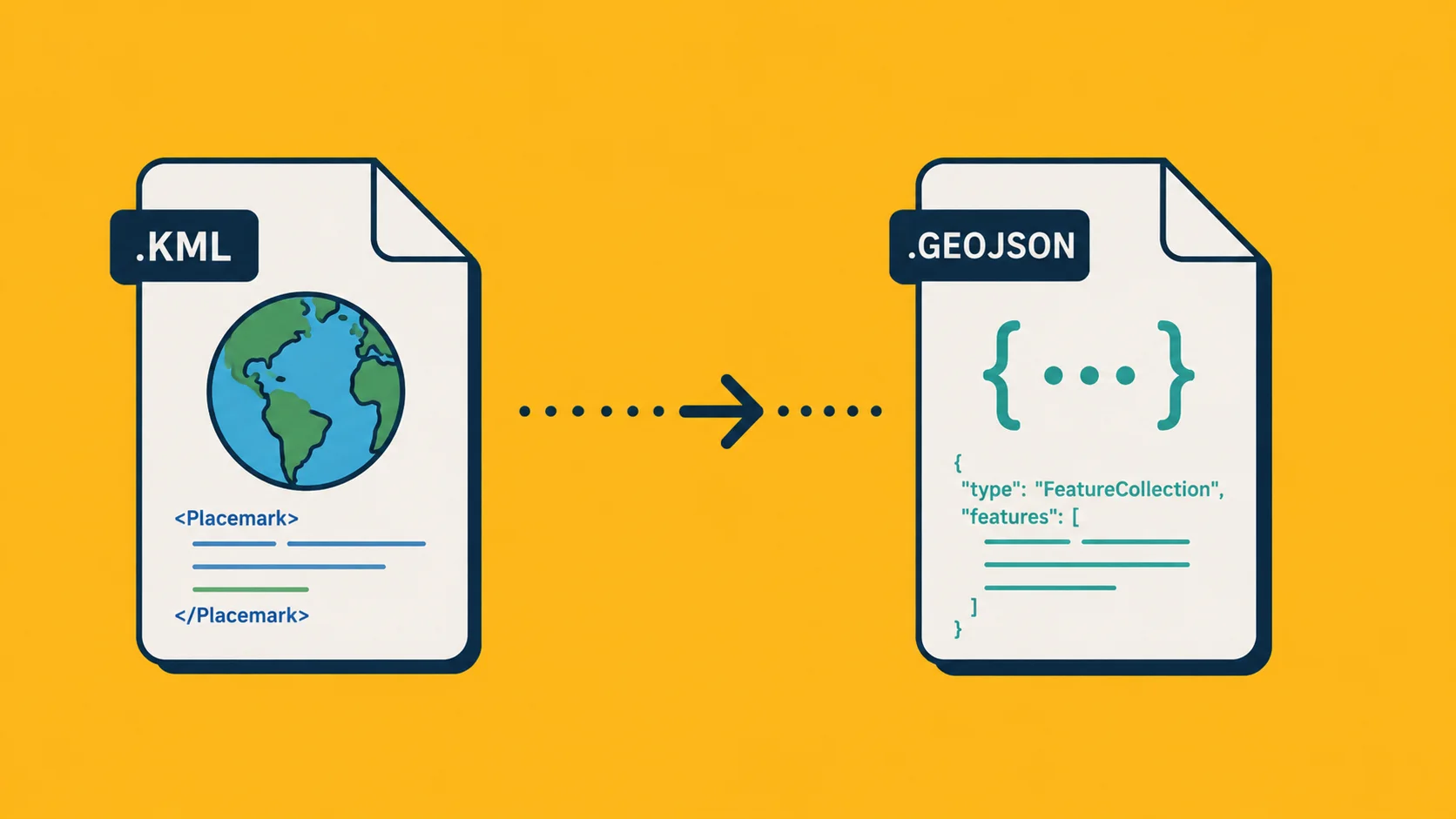
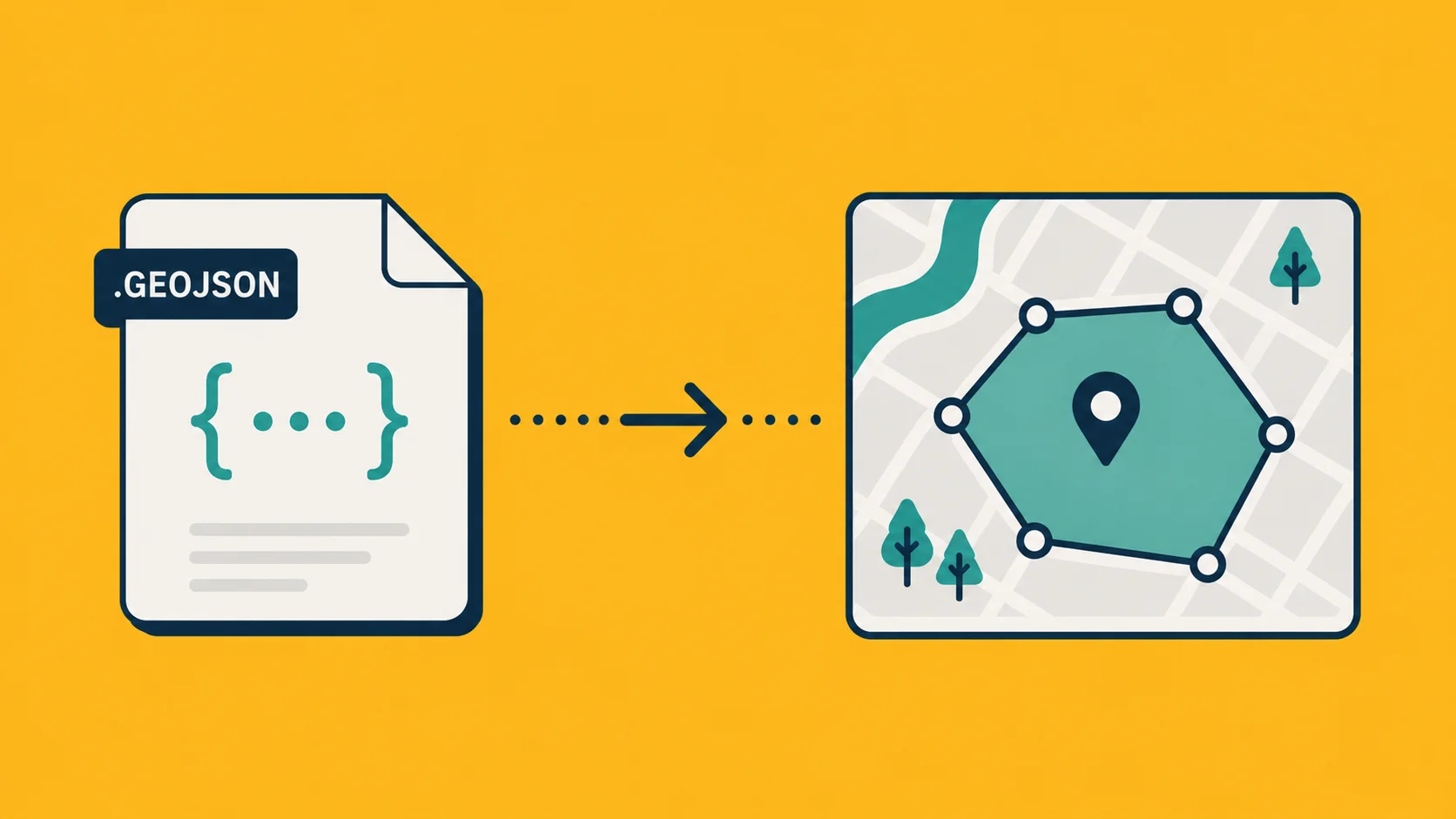
To get the iframe URL from Georaf, you upload a file (GeoJSON, KML, Shapefile, whatever you have), set the default view, pick a few options (pan and zoom on or off, branding shown or hidden), and copy the snippet. The whole flow is under a minute.
Pros:
- Truly zero code. Works in WordPress, Squarespace, Webflow, any CMS that accepts HTML.
- The map service handles tiles, attribution, mobile rendering, accessibility, all the boring bits.
- Updates to your data don't require redeploying your site, just edit the file in the service and the embed reflects it.
Cons:
- You're at the mercy of the embed provider for uptime, styling, and pricing.
- Limited customization. If you want pixel-perfect control over every label and color, this isn't it.
- Sandboxed in an iframe, so you can't easily wire the map into the rest of your page (clicking a button on your site to highlight a region on the map, for example, is harder).
Best when: marketing pages, blog posts, "where we operate" sections, dashboards where the map is one independent widget rather than the whole UX. Roughly 70% of the maps you see embedded on company sites are this category. They're using iframes and you'd never know unless you opened devtools.
Method 2: A JavaScript map library (Leaflet, MapLibre)
If you need real customization, hooking the map into the rest of your page, custom interactions, dynamic data loading, this is the route. Two leading options:
Leaflet is the friendliest. It's been around since 2010, has thousands of plugins, and the API is small enough to learn in an afternoon. Open source, no API key required.
<link rel="stylesheet" href="https://unpkg.com/leaflet/dist/leaflet.css" />
<script src="https://unpkg.com/leaflet/dist/leaflet.js"></script>
<div id="map" style="height: 400px;"></div>
<script>
  const map = L.map('map').setView([52.52, 13.405], 13)
  L.tileLayer('https://{s}.tile.openstreetmap.org/{z}/{x}/{y}.png').addTo(map)
  L.marker([52.52, 13.405]).bindPopup('Brandenburg Gate').addTo(map)
</script>
That's a working map. Five minutes of work, no signup, no API key.
MapLibre GL JS is the modern successor to Mapbox GL JS (open-sourced after Mapbox went proprietary). Better for vector tiles, smoother performance with big datasets, true 3D. Steeper learning curve.
Pros:
- Total control. Style every label, interaction, and pixel.
- Wire it into the rest of your page however you want.
- No iframe sandbox.
Cons:
- You write the code. Even a "simple" Leaflet map is 20-30 lines of JS to get right.
- You manage tile providers and API keys. If you use Mapbox's tiles or Google's tiles, that's a separate billing relationship.
- You handle the "what if it breaks" cases yourself. Mobile rendering, slow networks, accessibility.
- If your data changes, you have to redeploy your site (or build a data-loading layer that fetches from somewhere).
Best when: the map is core to your product, not just a marketing decoration. Or when the map needs to talk to the rest of the page (filtering, highlighting, syncing with other UI).
Method 3: Google Maps embed
The default option many people reach for first, worth being honest about: Google's "share this map" embed.
It's free, it's familiar, and it shows up everywhere. But:
- It only embeds Google Maps content (a search, a saved location, your business listing). You can't embed your own dataset without using the paid Maps Platform.
- It looks like Google Maps, because it is Google Maps. No styling control whatsoever.
- The Maps Platform free tier is limited and the paid tier starts feeling expensive once you're serving thousands of map loads per month.
Best when: you want to point people at a physical location ("here's our office") and that's the whole job.
Which one should you actually use?
| Your situation | Use |
|---|---|
| Marketing page, blog post, simple "here's our data" widget | iframe embed (Georaf, etc.) |
| Your map IS the product | Leaflet or MapLibre |
| You're pointing at a physical address only | Google Maps embed |
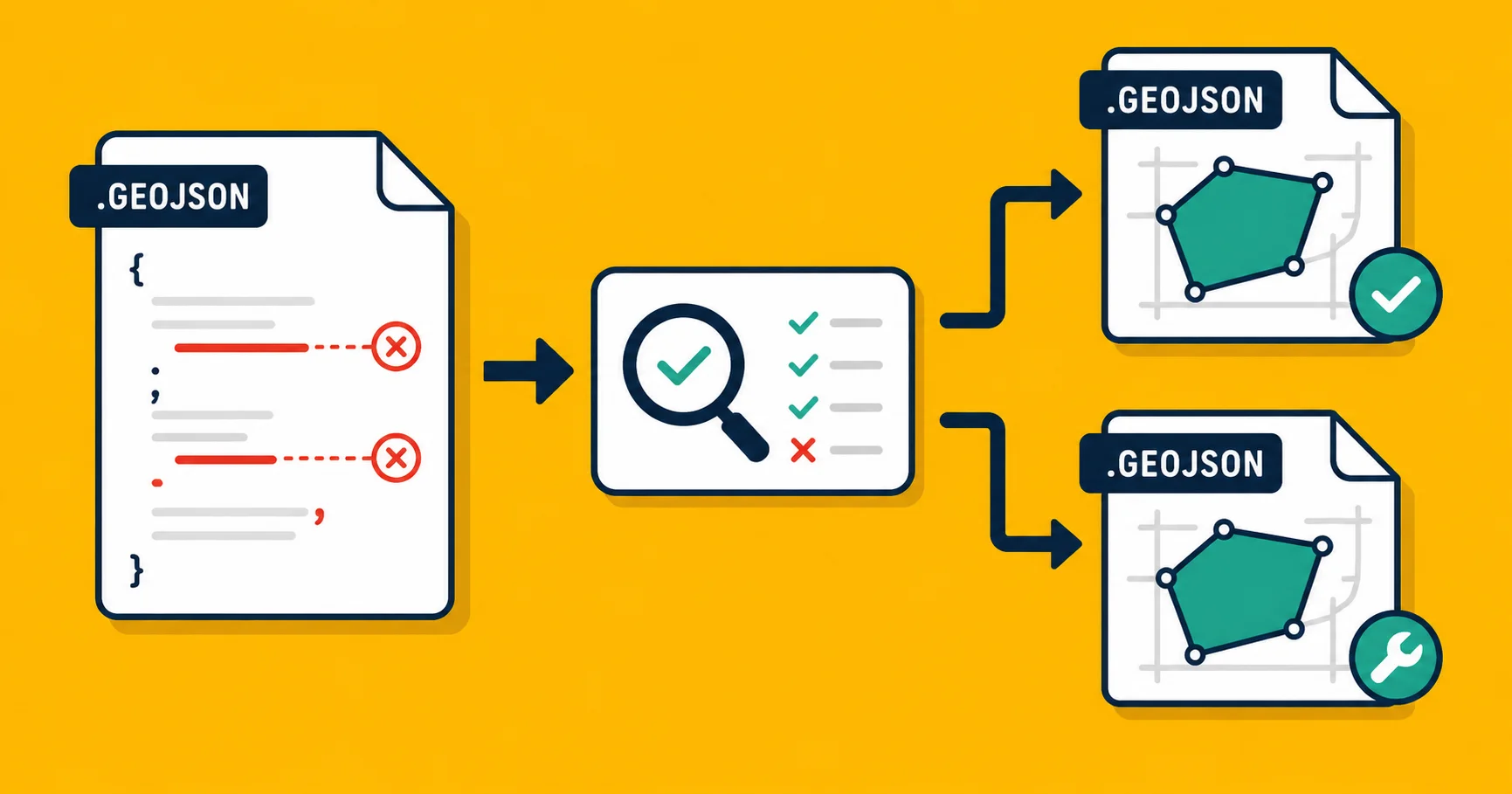
| You need maps but also data validation and conversion | Georaf (embed + converter + validator in one) |
| You need server-rendered map images | A separate static-map service (Mapbox Static, Geoapify, etc.) |
The honest answer is that Method 1 (iframe) is right for the vast majority of websites that want "a map." Roughly the same logic as embedding a YouTube video versus building your own video player. The video player is the right answer if video is your product. For everyone else, iframe.
A few things that catch people out
Iframes and Content Security Policy: if your site has a strict CSP, you may need to whitelist the embed origin. For Georaf, that's https://georaf.com under frame-src.
Mobile responsiveness: iframes don't auto-resize the way modern components do. Wrap the iframe in a div with aspect-ratio: 16 / 9 (or whatever ratio you want) and set the iframe to width: 100%; height: 100%; to make it responsive. Or use the CMS's built-in embed block, which usually handles this.
Map vs satellite: most embed services let you pick a base style (light, dark, satellite, terrain). Some force you onto a default. Check before you build a dark-mode landing page assuming you'll get a dark map.
Performance: every map embed loads a tile service, JS, and your data. Embedding three maps on the same page can add 1-2 MB and noticeably hurt page speed. Lazy-load below-the-fold maps.
Wrapping up
The default decision tree for "I want a map on my site" should be:
- Is the map a key feature of my product? → Leaflet or MapLibre.
- Is it a marketing widget or content block? → iframe embed.
- Am I just pointing at an address? → Google Maps.
For the iframe path, Georaf does the embed plus the format conversion, validation, and quality fixes on the same file. Upload once, get the iframe snippet, paste it into your site. See the embed guide for the full options.