 Georaf Team
Convert KML to Shapefile (and Shapefile to KML)
Two of the most common geodata conversions in one guide. Three ways to go from KML to Shapefile and back, with honest trade-offs.
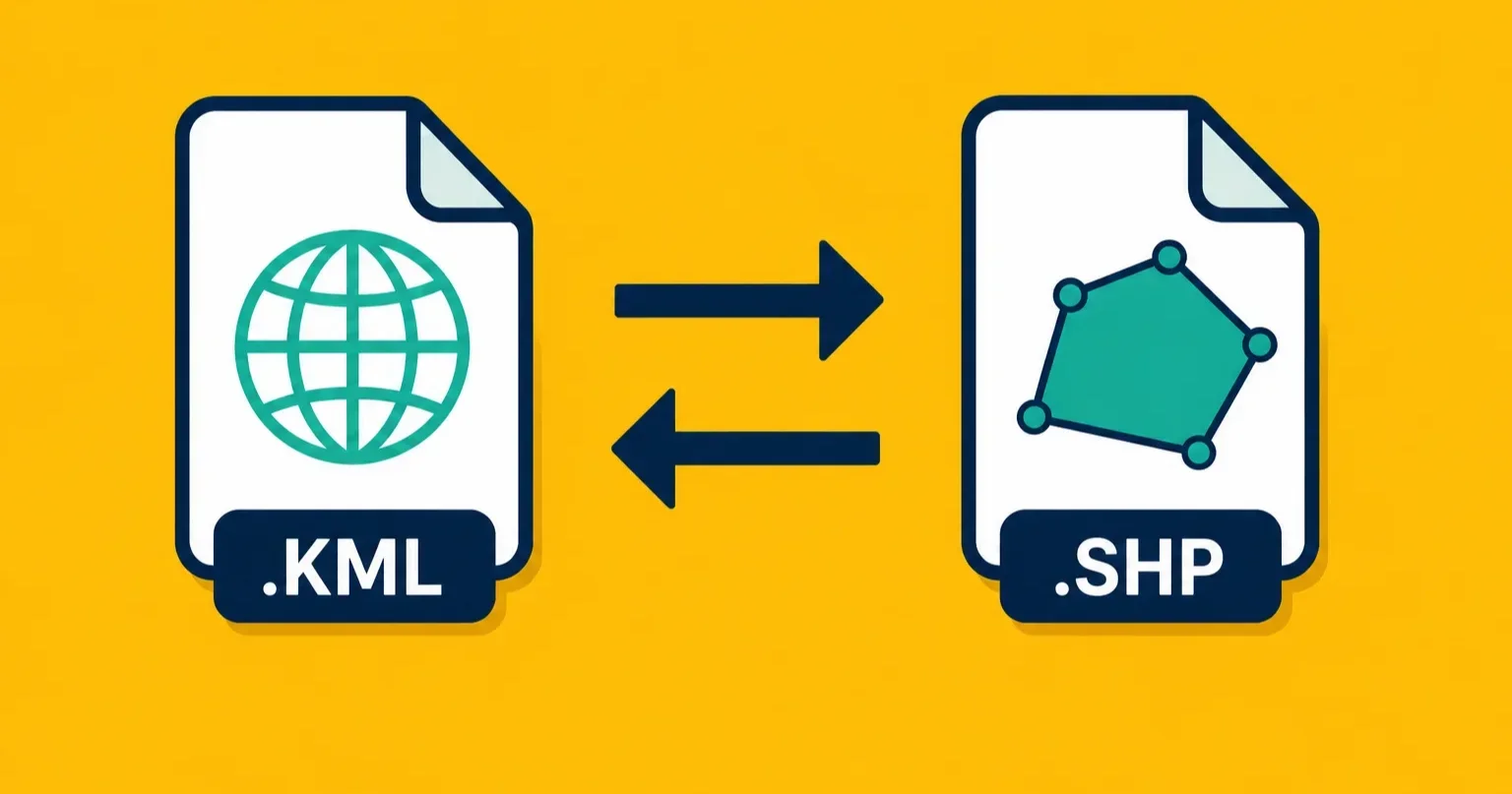
KML and Shapefile exist on opposite ends of the geodata world. KML comes from Google Earth, where anyone can draw a boundary, drop a pin, or trace a route and share it as a single file. Shapefile is the workhorse format used by government agencies, surveyors, and GIS software going back decades. Sooner or later, data created in one format needs to move into the other.
This guide covers both directions: KML to Shapefile and Shapefile to KML. Three methods each, with honest notes on what survives the conversion and what doesn't.
Why you'd go KML to Shapefile
Someone sent you a KML file they drew in Google Earth, and your GIS software only accepts Shapefiles. Or you need to submit geographic data to a government portal that requires Shapefile format. KML is great for sharing and viewing, but many official systems and desktop GIS tools were built around Shapefile and haven't moved on.
Why you'd go Shapefile to KML
You have official data in Shapefile format and want to visualize it in Google Earth, share it with someone who doesn't have GIS software, or load it into a web mapping tool that accepts KML. Shapefile bundles are also harder to share (they're actually four or more files) while KML is a single file you can email or link to.
Converting KML to Shapefile
Method 1: Georaf (web browser, no install)
Georaf accepts KML files and converts them to Shapefile format directly in the browser. Upload your .kml file, and you'll get back a zipped Shapefile bundle containing the .shp, .dbf, .shx, and .prj files that GIS software expects.
This works well if you don't have GIS software installed and just need the conversion done quickly. It also runs a basic check on your file before converting, so you'll catch any problems before they cause headaches downstream.
Method 2: ogr2ogr (command line)
ogr2ogr is a free, open-source tool that handles almost every geodata format conversion. If you're comfortable with a terminal, this is the most reliable option for large files or batch work.
ogr2ogr -f "ESRI Shapefile" output.shp input.kml
This produces a Shapefile from your KML. The tool is part of GDAL, which you can install via gdal.org or with a package manager like Homebrew on Mac (brew install gdal).
For files with multiple geometry types (some KML files mix points, lines, and polygons), ogr2ogr will split them into separate output files automatically.
Method 3: QGIS
QGIS is a free desktop GIS application. Open your KML file in QGIS, right-click the layer in the panel on the left, and choose Export > Save Features As. Set the format to ESRI Shapefile, pick an output location, and save.
QGIS gives you the most control: you can inspect the data before exporting, rename fields, choose which entries to include, and set the coordinate system. The trade-off is the software takes a few minutes to install and has a learning curve if you've never used it.
Converting Shapefile to KML
Method 1: Georaf (web browser, no install)
Georaf also converts in the other direction. Upload your Shapefile as a zip (all the component files bundled together), and download a KML. If you're not sure how to zip your Shapefile, just select all the files that share the same base name (.shp, .dbf, .shx, .prj, and any others) and compress them together.
Method 2: ogr2ogr (command line)
ogr2ogr -f "KML" output.kml input.shp
Same tool, reversed. If your Shapefile has entries in a coordinate system other than the standard WGS84 (latitude/longitude), ogr2ogr will reproject them automatically so the KML displays correctly in Google Earth.
Method 3: QGIS
Open the Shapefile in QGIS, right-click the layer, and use Export > Save Features As, this time setting the format to KML. QGIS will also let you choose which fields to include, which is useful if you want to control what shows up in Google Earth's info popups.
What gets lost in conversion
This is the part most guides skip, so let's be direct about it.
KML styling doesn't carry over to Shapefile. KML files can store colors, line widths, icon styles, and label settings. Shapefile format has no equivalent for this. Your entries will arrive in the Shapefile without any visual styling attached. You'll need to apply styling in whatever GIS software you open the Shapefile in.
Shapefile field names truncate to 10 characters. KML attributes can have long descriptive names like "PropertyOwnerName" or "LastInspectionDate". Shapefile format limits attribute names to 10 characters. "PropertyOwnerName" becomes "PropertyOw" and "LastInspectionDate" becomes "LastInspec". This can make it hard to tell columns apart after conversion. Rename your fields before converting if this matters.
KMZ photos won't transfer. If your KML file is actually a KMZ (a zipped KML that can include embedded images), any photos attached to entries won't survive the trip to Shapefile. Shapefile has no mechanism for storing images. If this matters, read more about KMZ vs KML and consider keeping a copy in the original format.
Shapefile splits by geometry type. If your KML contains a mix of points, lines, and polygons, these will end up as separate Shapefile layers. This isn't data loss exactly, but it can be surprising if you expected one output file.
Character encoding can cause issues. KML uses UTF-8, which handles accented characters, non-Latin scripts, and symbols without trouble. Shapefile attribute encoding is less standardized, and special characters sometimes come out garbled. Check your text fields after converting if your data includes anything beyond plain ASCII.
Choosing the right method
For a quick one-off conversion without installing anything, Georaf handles both directions and gives you a clear error if something's wrong with the file. For large files, batch processing, or scripted workflows, ogr2ogr is the right tool. For full control and the ability to inspect data before converting, QGIS is worth the setup time.
If you're working with geodata regularly and find yourself converting between formats often, it's worth reading about what a Shapefile actually is and how KML and GeoJSON compare. Understanding the formats makes it easier to pick the right one for each job rather than converting back and forth unnecessarily.