 Georaf Team
How to Record a GPS Track and Turn It Into a Map File
Walk a path, record it with GPS, and export it as a KML or GeoJSON file you can open anywhere. A practical guide for field workers and outdoor professionals.
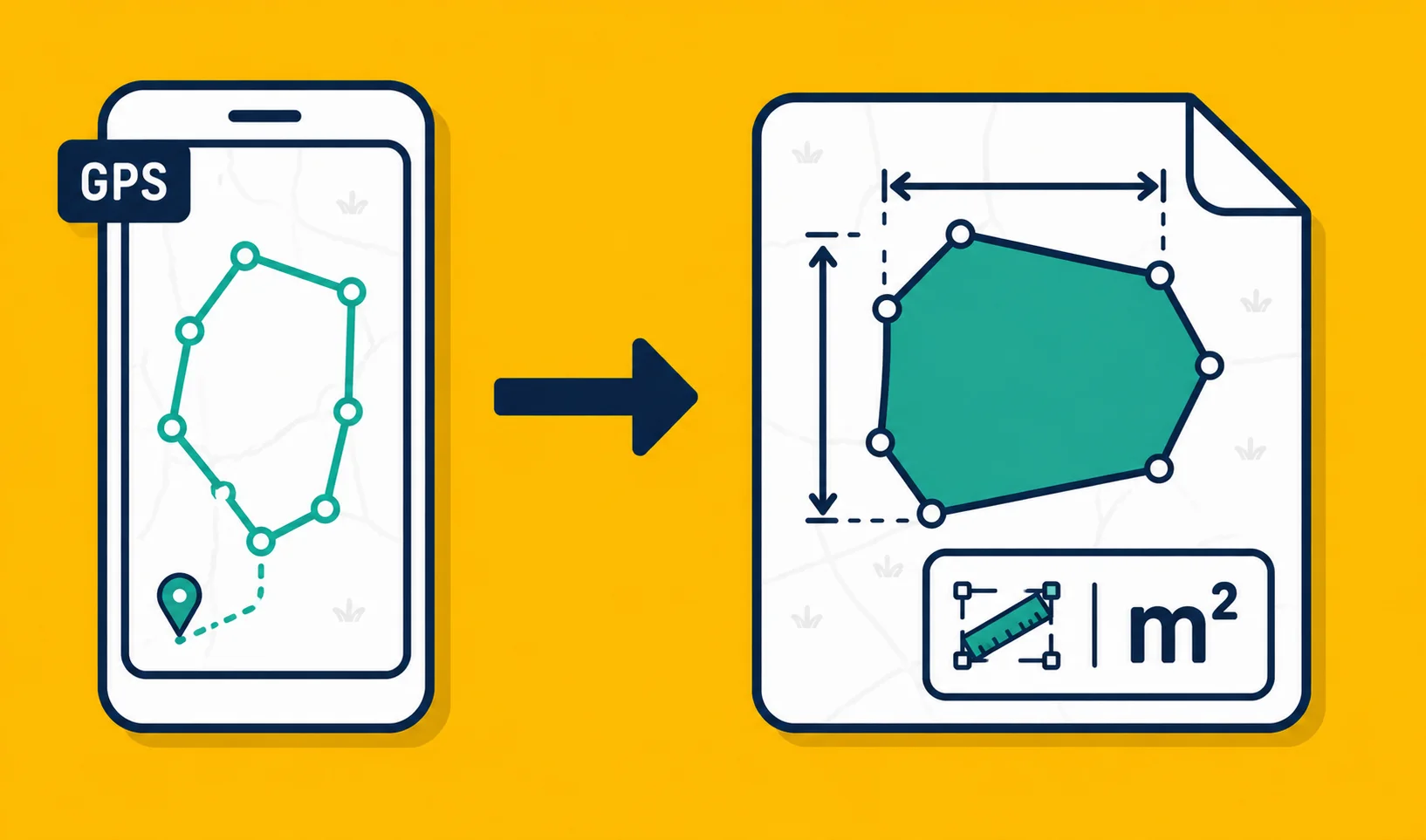
Your phone already knows where you are. While you're walking, it can write down every position it sees, one point every few seconds, and string those points together into a line. When you're done, that line is a real map file you can open in Google Earth, load into mapping software, or share with someone else. That's GPS tracking in one sentence.
The actual process takes about five minutes to learn. The harder question is which app to use, what affects how accurate the result is, and what to do with the file once you have it. This piece covers all three.
What your phone is actually doing
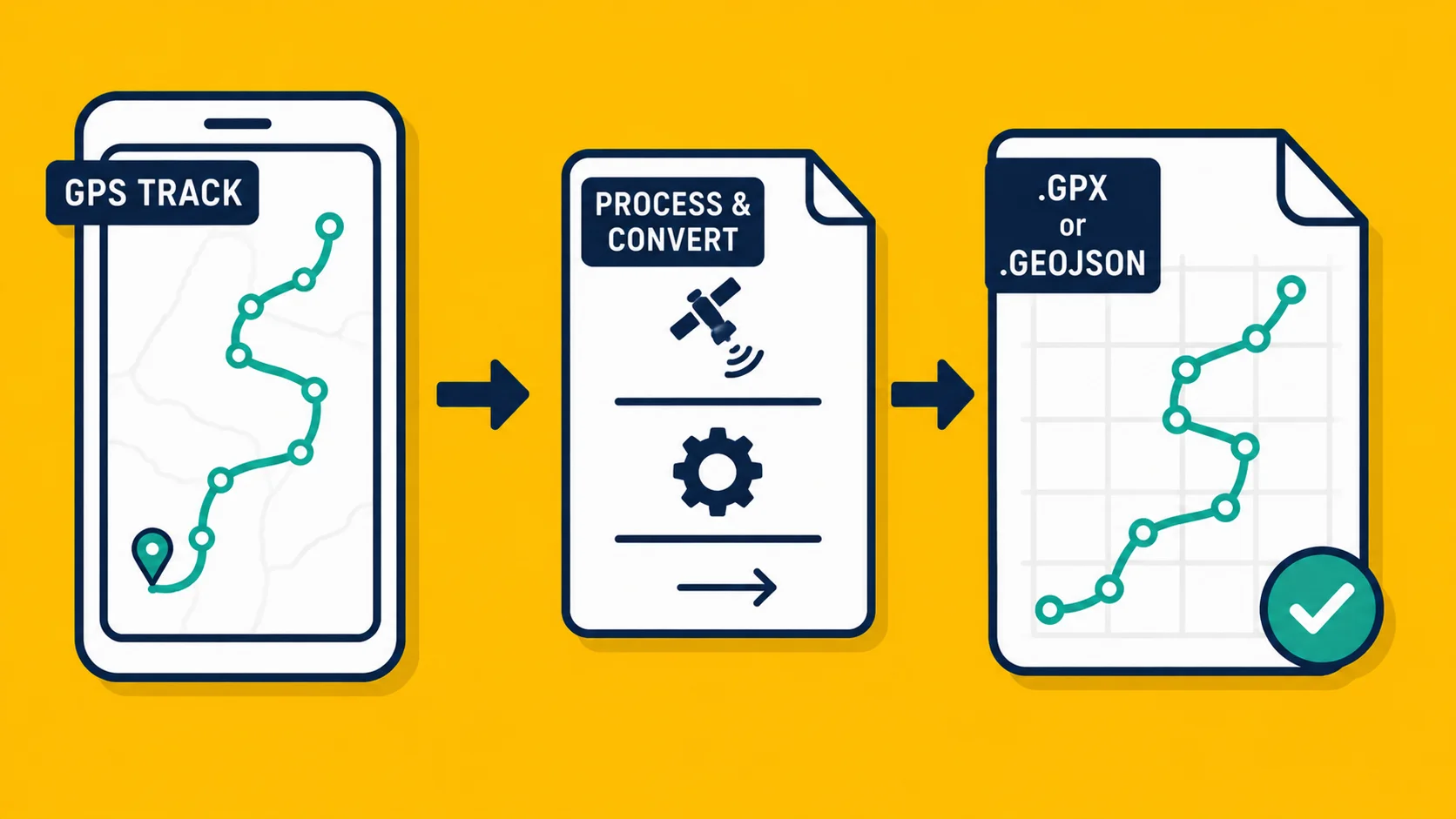
When you record a GPS track, your phone's GPS chip is polling satellites. Every few seconds, it logs a coordinate: latitude, longitude, and usually elevation. By the time you've walked a kilometer, the app has maybe a hundred of those coordinate pairs sitting in memory.
The app then stitches them into a line. The more points, the smoother the line and the more detail it captures. Walk a tight curve and it shows a curve. Walk a straight edge and it shows a straight edge. The output is just a list of coordinates with timestamps, saved in a file format like KML or GeoJSON.
That's the whole mechanism. There's no clever inference going on. The file contains exactly where your phone thought it was, at exactly the times you were recording.
What affects accuracy
Consumer GPS, meaning the chip in a normal phone, typically lands within 3 to 5 meters of the actual position under good conditions. Good conditions means open sky, no tall buildings nearby, weather that isn't actively problematic.
That accuracy degrades in predictable ways:
Tree cover is the biggest one in practice. A dense canopy blocks satellite signals. The chip still gets a reading, but it can be off by 10 to 20 meters or more. If you're walking a forest boundary, expect the track to wander a bit under the trees.
Buildings cause similar signal bounce. In a city, satellite signals reflect off facades and arrive from unexpected angles. The phone interprets this as your position being somewhere slightly off. Walking the perimeter of a building in an urban area will often show a track that looks slightly pulled in one direction.
Phone hardware matters too. A mid-range phone from three years ago will perform noticeably worse than a current flagship. Both work, but the difference shows up in noisy conditions.
Movement speed has a smaller effect. Walking is fine. Running can cause the track to cut corners slightly because the polling interval is fixed.
For most practical field work, 3 to 5 meters is more than adequate. You're walking a field boundary, a road route, a trail. You don't need sub-meter precision; you need a usable outline that another person or software system can understand.
If your work requires centimeter-level accuracy (surveying in a legal sense, some agricultural applications), a phone is not the right tool. You'd need a dedicated GNSS receiver with differential correction, which is a different category of device entirely.
The workflow
The steps are the same regardless of which app you use:
- Open the app. Make sure it has a GPS fix before you start. Most apps show a location indicator. Wait until it settles on a stable position rather than jumping around.
- Press start (or record, or begin track, depending on the app).
- Walk your path.
- Press stop when you're done.
- Export the file in whatever format you need.
The only real technique involved is making sure you have GPS lock before you start. If you begin recording the moment you open the app, the first 30 seconds of your track might jump to several wrong positions before the chip gets a proper fix. Most apps show a satellite count or an accuracy indicator, and it's worth waiting until that settles.
Using Landplot for GPS track recording
Landplot is a free iOS and Android app built for exactly this. You start a GPS track, walk the path, and stop when you're done. It shows the track building in real time on a satellite map, so you can see where you've been and whether the line looks right.
Beyond just recording, Landplot lets you mix the GPS track with other entries in the same project: drop a marker on a corner post, draw a line along a fence, record the boundary as a walked track. Everything sits in one file.
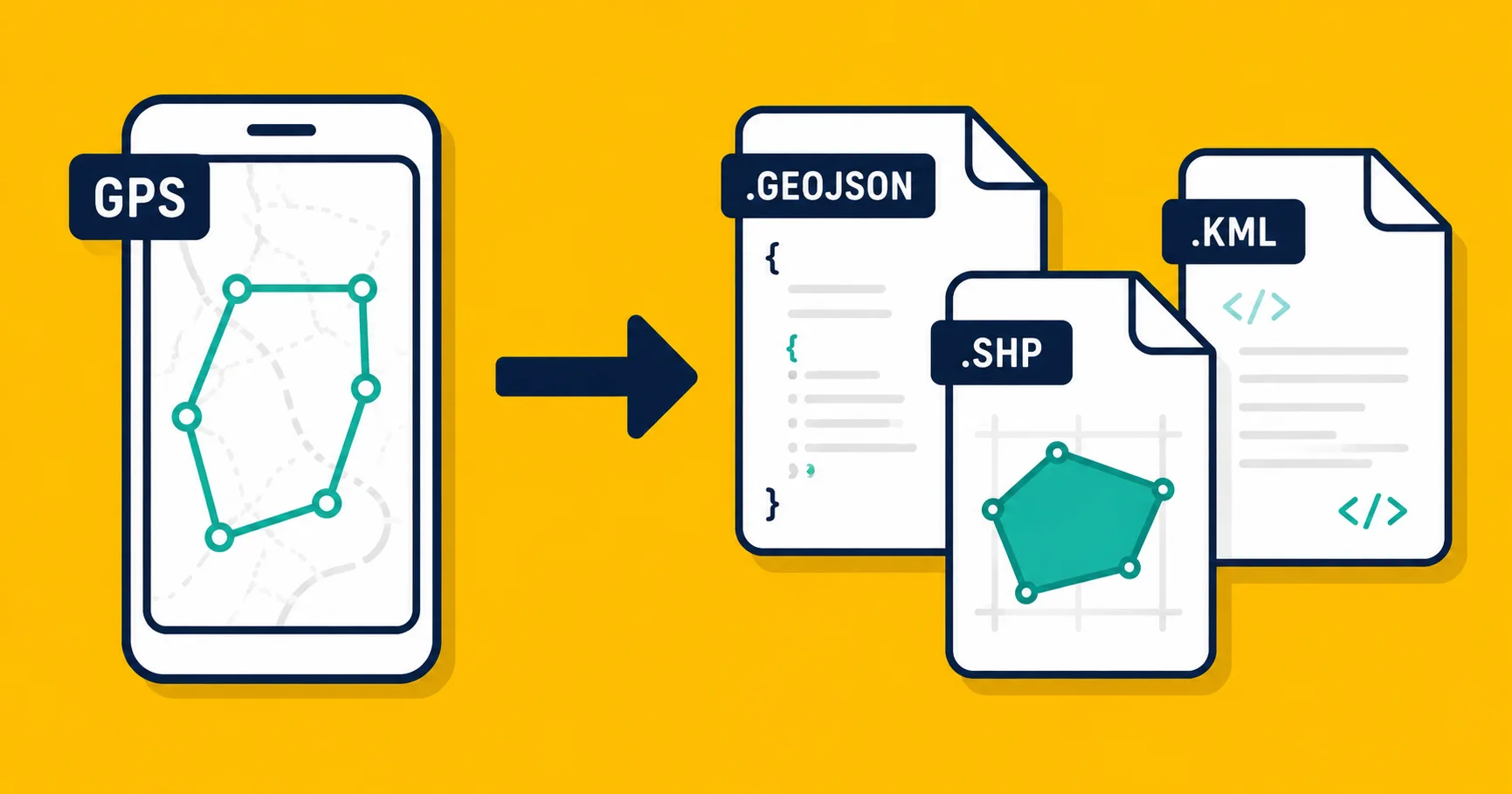
When you're ready to export, you pick KML, KMZ, or GeoJSON. If you've also attached photos to any markers in the project, export as KMZ and the photos travel inside the file. If you're handing the file to a developer or loading it into a web mapping tool, GeoJSON is usually what they want.
The app works offline. Satellite imagery is cached when you have a connection, and the GPS chip doesn't need internet to work. You can record a track in a field with no signal and it will work exactly as described.
Exported formats: what they mean
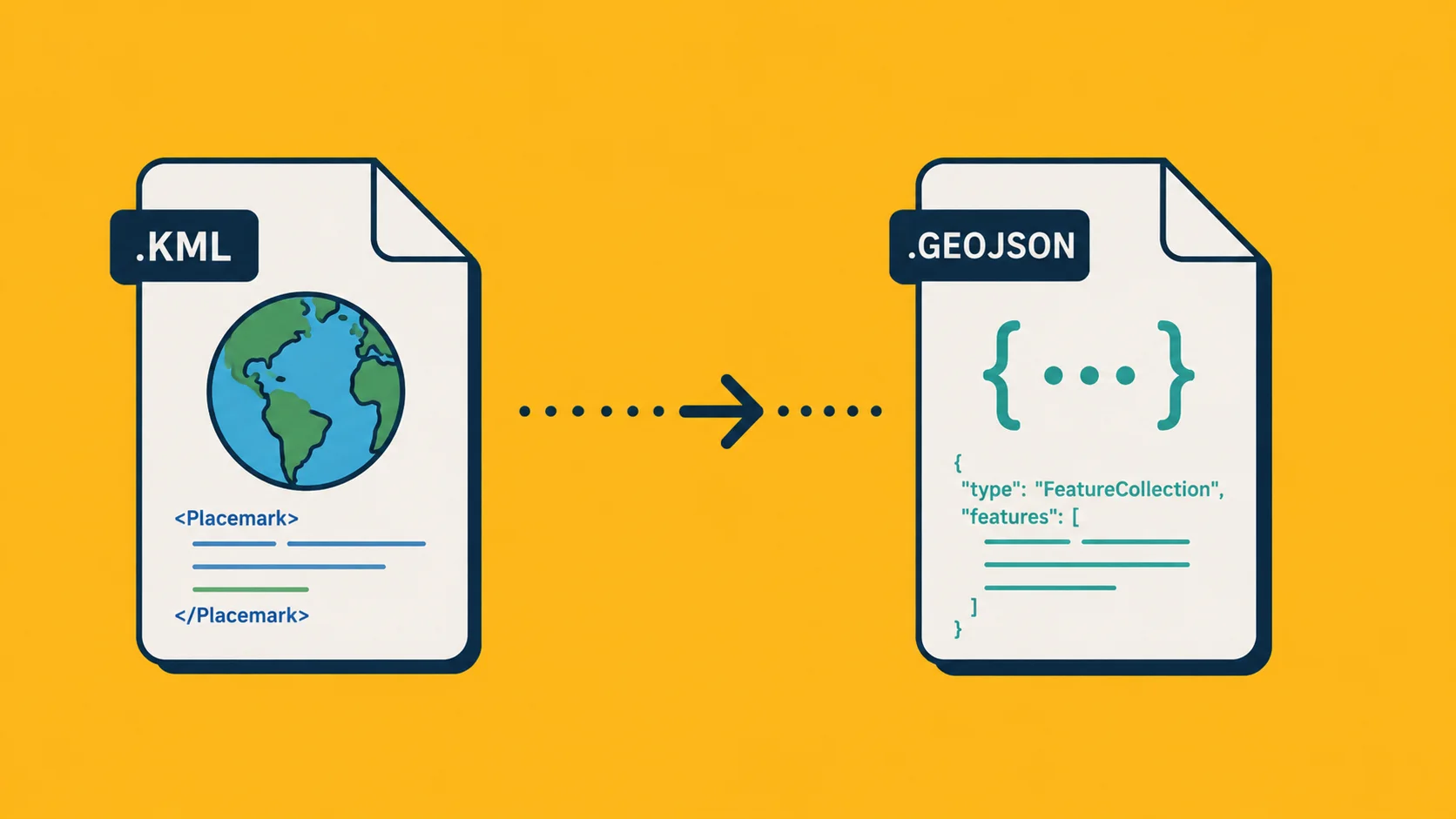
KML is the format Google Earth made popular. It's readable XML text. Any software with map support will open it. If someone asks you to "send the file," KML is a safe default, because almost nothing refuses to open it.
KMZ is a zipped version of KML. Same content, smaller file, and it can bundle photos inside the archive. A KMZ file is what you want if the track is attached to a project with photos, or if you want to keep everything in one place.
GeoJSON is the format web mapping tools prefer. If you're loading the file into a JavaScript map, uploading it to a data platform, or handing it to someone who writes code, GeoJSON is usually the right choice.
If you recorded in KML but someone needs GeoJSON, or vice versa, converting between them takes about five seconds on georaf.com. No information is lost in that conversion; only the styling (colors, icon types) doesn't transfer, because GeoJSON doesn't carry visual styling in the file itself.
What to do with the file once you have it
Open it in Google Earth. Download the desktop app (free), drag the file in, and Google Earth will fly to it and draw the track on a satellite view. This is useful for reviewing what you recorded, sharing a quick visualization with someone, or just confirming the path looks right.
Upload to georaf.com. Drop the file onto georaf.com and you can convert it to a different format, check the track for any geometry issues, or generate an embed map that you can paste into a website or share as a link. If a colleague needs to see the walk you did around a field boundary but doesn't have a mapping app, an embed link they can open in a browser is the easiest way to share.
Share the file directly. KML and GeoJSON are standard formats. Anyone with Google Earth, QGIS, or a dozen other tools can open them. You can also import KML into Google My Maps if that's where your team works, although Google My Maps has limits on file size and entry count that become annoying when you have large datasets.
Load it into GIS software. If your organization uses ArcGIS or QGIS, both read KML and GeoJSON natively. The track becomes a layer you can work with like any other data.
A few things that can go wrong
The track looks like a tangled mess at the start. This is the GPS warm-up problem described earlier. The first few points were recorded before the chip had a solid fix. Most apps let you trim the track after recording. Otherwise, you can clean it up in Google Earth or by editing the file.
The track drifts in one direction under trees. Expected behavior for consumer GPS. If the boundary you're recording crosses dense tree cover, accept that those sections will be less precise. For a rough outline that's fine. For a legal boundary survey, it isn't.
The file won't open in the software you're using. Most commonly a format mismatch. Check whether the software wants KML or GeoJSON. If it wants something else entirely (Shapefile, for example), georaf.com can handle that conversion too.
The file is valid but the coordinates are wrong. Rare with modern apps, but if the track shows up in the wrong part of the world, the app may have exported in a different coordinate system than the software expects. Nearly all consumer GPS apps export in WGS 84, which is the standard, but the occasional exception exists.
When GPS tracking is the right approach
GPS tracking makes sense when:
- The boundary or path isn't a regular shape you can approximate by tapping points on a satellite image
- You need to record where someone physically walked, not just approximate it
- The path is too long or complex to trace manually
- You want to capture a route as you travel it, in real time
For quick rectangular plots or simple point locations, tapping the map by hand is often faster. GPS tracking adds value when the shape is complex, irregular, or too large to see clearly from a satellite view.
For a broader look at field mapping on a phone, including how to draw outlines, drop markers, and attach photos alongside a GPS track, the Landplot app overview covers the full workflow.