 Georaf Team
Landplot: A GPS Field Mapping App That Works Offline and Exports to Real Formats
Landplot is a free iOS and Android app for GPS field mapping. Drop markers, draw areas, record walked paths, attach geotagged photos, and export to KML, KMZ, or GeoJSON.
Most field mapping tools make you choose between something simple enough to use on a phone and something that actually produces files your GIS software can open. Landplot doesn't ask you to choose.
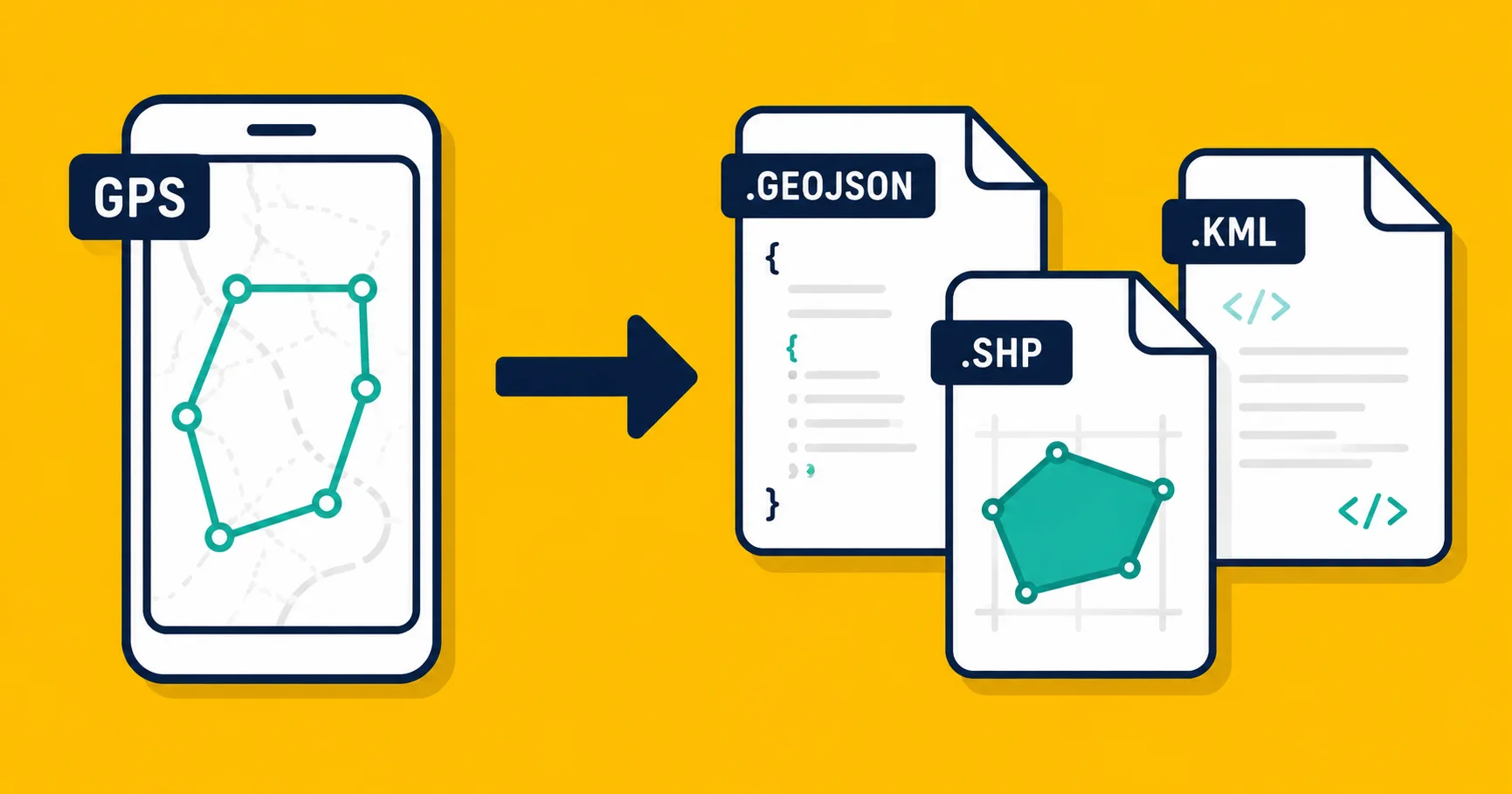
It's a free GPS mapping app for iOS and Android. You go out to a site, draw what you need, and come back with a KML, KMZ, or GeoJSON file that opens in Google Earth, QGIS, ArcGIS, or georaf.com. No conversion step, no account, no internet connection required.
Here's how it works in practice.
Drawing on a satellite map
When you open Landplot, you're looking at a satellite image of wherever you are. From there you can do three things:
Drop a marker on a specific point. A gate, a sample location, a problem area, a corner post. Tap once and it's pinned. Give it a name and any notes you want to attach.
Draw a line or area by tapping corner to corner. As you add each point, you can see the running measurement: length for a line, area and perimeter for a closed outline. If you're measuring a field, you see the hectares (or acres) update as you go. If the shape is wrong, you tap a point and move it.
Record a walked path by turning on GPS tracking and walking the boundary. The app traces your route and saves it. Useful when the boundary isn't a straight-line shape you can tap out by eye, or when you want the actual path somebody walked rather than an approximated outline.
All three types of entries live in the same project. You can mix markers, lines, areas, and GPS tracks freely.
Measurements happen while you draw
Live measurement is one of the things that makes a meaningful difference in practice. You don't draw first and check the size after. You watch the number while you're placing points, which means you know immediately if you've drifted off course or made a corner in the wrong place.
For areas, you see both the total area and the perimeter as the outline takes shape. For lines, you see the running length. These update on every tap.
If you're doing rapid site assessment and need to cover a lot of ground, being able to tell that the area you're outlining is half what you expected, right now, rather than back at the office, is actually useful.
Photos attached to a location
Any marker can have photos. You snap a photo from inside the app, it gets tagged with the GPS coordinates from that moment, and it stays attached to the marker.
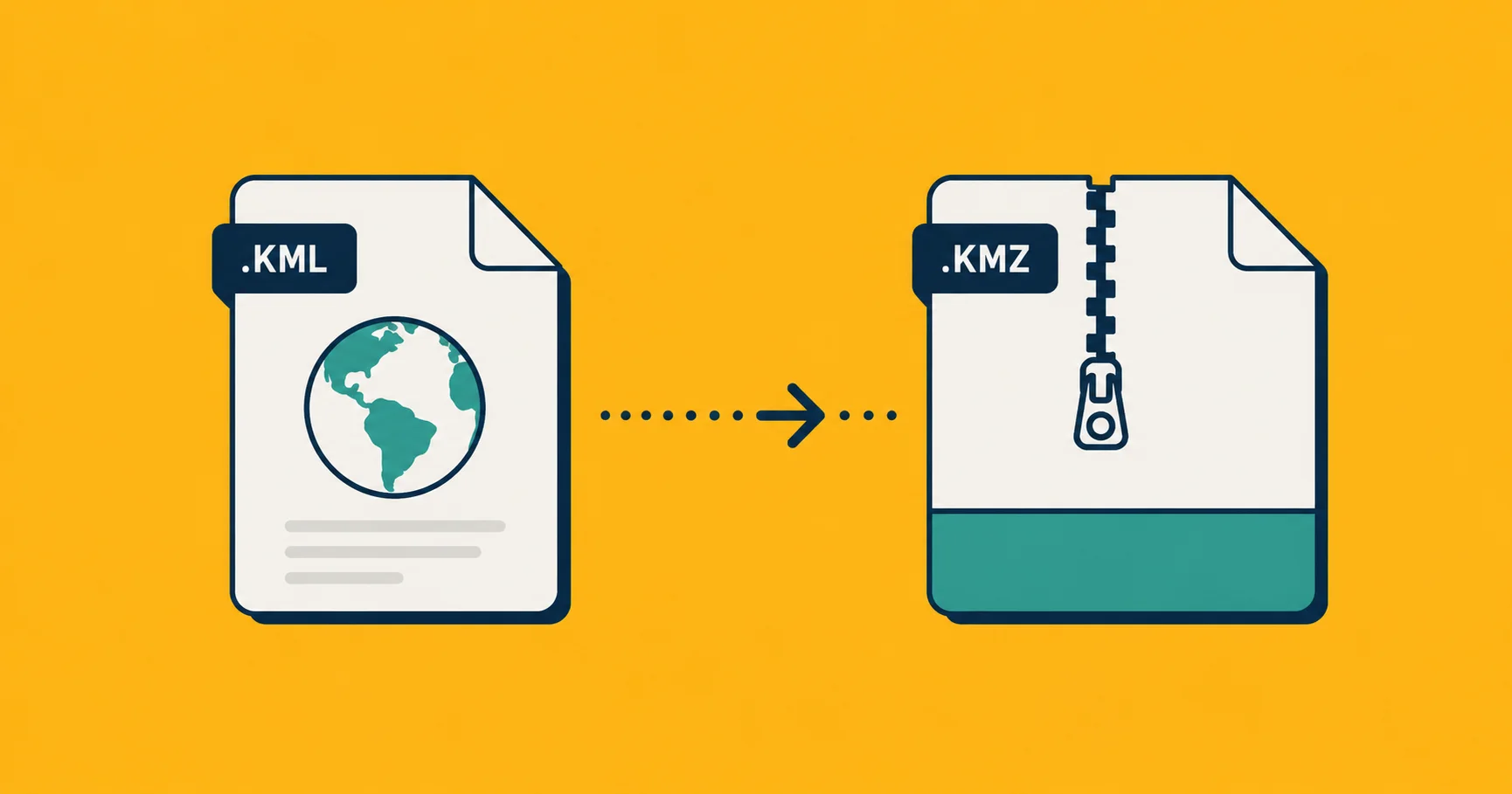
When you export the project as KMZ (a zip-format variant of KML), the photos travel inside the file. Open it in Google Earth and the photo is there when you click the placemark. The KMZ embeds the image alongside the location data, so you're not managing a separate folder of pictures.
You can also view photos full screen within the app by tapping any marker that has one.
Projects keep sites separate
If you work multiple sites, each one is a separate project. Switching between them is one tap from the project list.
Projects also record what changed and when. So if you go back to a site next month and update an outline, you can see what the boundary looked like before. Not a full version history, but enough to know when something changed.
Default attributes let you set project-level fields that auto-fill on every new entry: crop type, field crew, season, whatever makes sense for what you're collecting. You still edit them per entry when you need to, but the common fields don't have to be typed every time.
Exporting and where files go
When you're done, export the project. Three formats:
KML: plain-text XML format. Opens in Google Earth, QGIS, ArcGIS. If you've never worked with map files before, this is the most universally recognized format for anything Google Earth related. What KML actually is versus KMZ is worth five minutes of reading if you'll be sharing files with others.
KMZ: a zipped version of KML with the photos bundled in. Smaller file, same compatibility, and the one to use if you've attached photos and want them to travel with the file.
GeoJSON: the format most web mapping tools and code libraries expect. If you're handing the file to a developer, or loading it into a web map, GeoJSON is usually what they want.
You share the file by AirDrop, email, or your phone's share menu. The export ends up wherever you send it: your files app, your email outbox, a shared drive, wherever makes sense for your workflow.
Works offline, no account needed
Both of these matter more than they might sound.
Offline means the app works in any field, including ones with no signal. The satellite basemap is cached when you're online. Your entries save locally. Nothing requires a connection to function. You don't get partway through a mapping session and hit a "reconnect to continue" wall.
No account means you download the app and start mapping. There's no email address, no subscription, no setup. If you try the app and decide it's not for you, you've lost five minutes.
It's free.
From your phone to the web
Landplot handles the field work. Once you're back at a desk, the exported file is where georaf.com picks up.
Drop a Landplot KML, KMZ, or GeoJSON export onto georaf.com and you can:
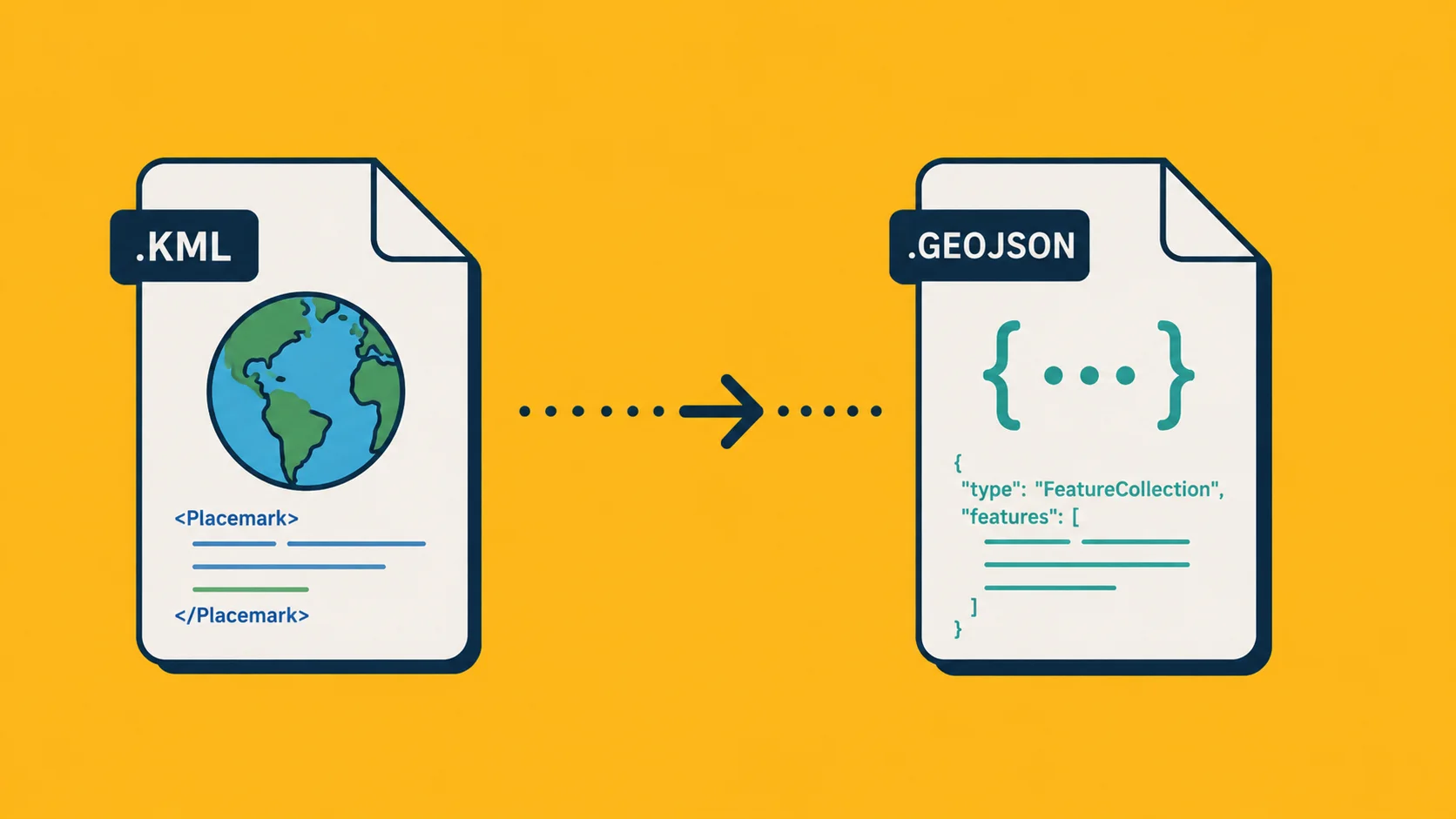
- Convert between formats. Need the file as a Shapefile for a colleague who uses ArcGIS? Or as GeoJSON because you're loading it into a web app? One step.
- Check and fix the data. The converter runs a health check on every file and flags anything that won't load cleanly in other tools: entries with broken geometry, coordinates that don't make sense, outlines that don't close. Most issues are fixable in one click.
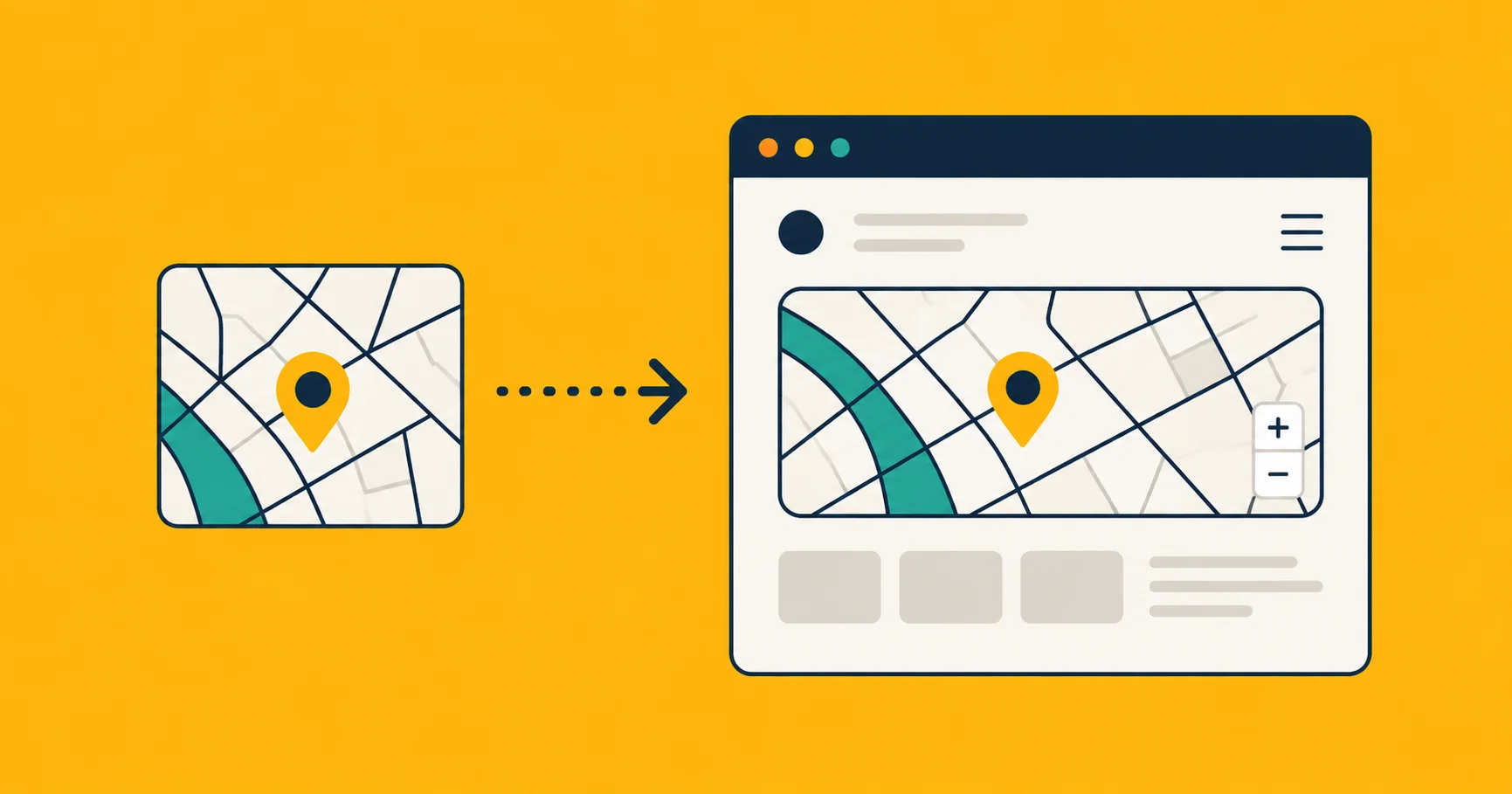
- Generate an embed map. Upload the file, set the default view, and get an iframe snippet you paste into any website. The same way you'd embed a YouTube video, but it's your field data. If you need a map on a website without writing JavaScript, this is the straightforward path.
The formats Landplot exports are exactly the formats georaf.com accepts as input. You don't need to do anything to the file between the two.
Who actually uses this
The app fits any situation where you're physically at a location and need to record what's where:
- Agricultural land: outlining fields, recording sample points, noting problem areas
- Environmental surveys: walking transects, tagging observation spots
- Construction and site work: marking boundaries, recording visited locations
- Real estate and land assessment: walking a property and getting a rough area
- Research fieldwork: any project where you need spatial records from a field site
The common thread is that you need to record something about a specific place, you're standing there, and you want the result in a format a computer can actually use rather than a screenshot.
Getting it
Landplot is free on both platforms:
No in-app purchases, no subscription tier for the features described here.
If you want to see what the web platform does with the files you collect, georaf.com is the same idea applied to a desk workflow: upload a file, convert or fix it, embed it on a site.