 Georaf Team
Convert KMZ to Shapefile: A Step-by-Step Guide
KMZ files from Google Earth need to become Shapefiles for GIS software. Three ways to do the conversion, plus what happens to your embedded photos.
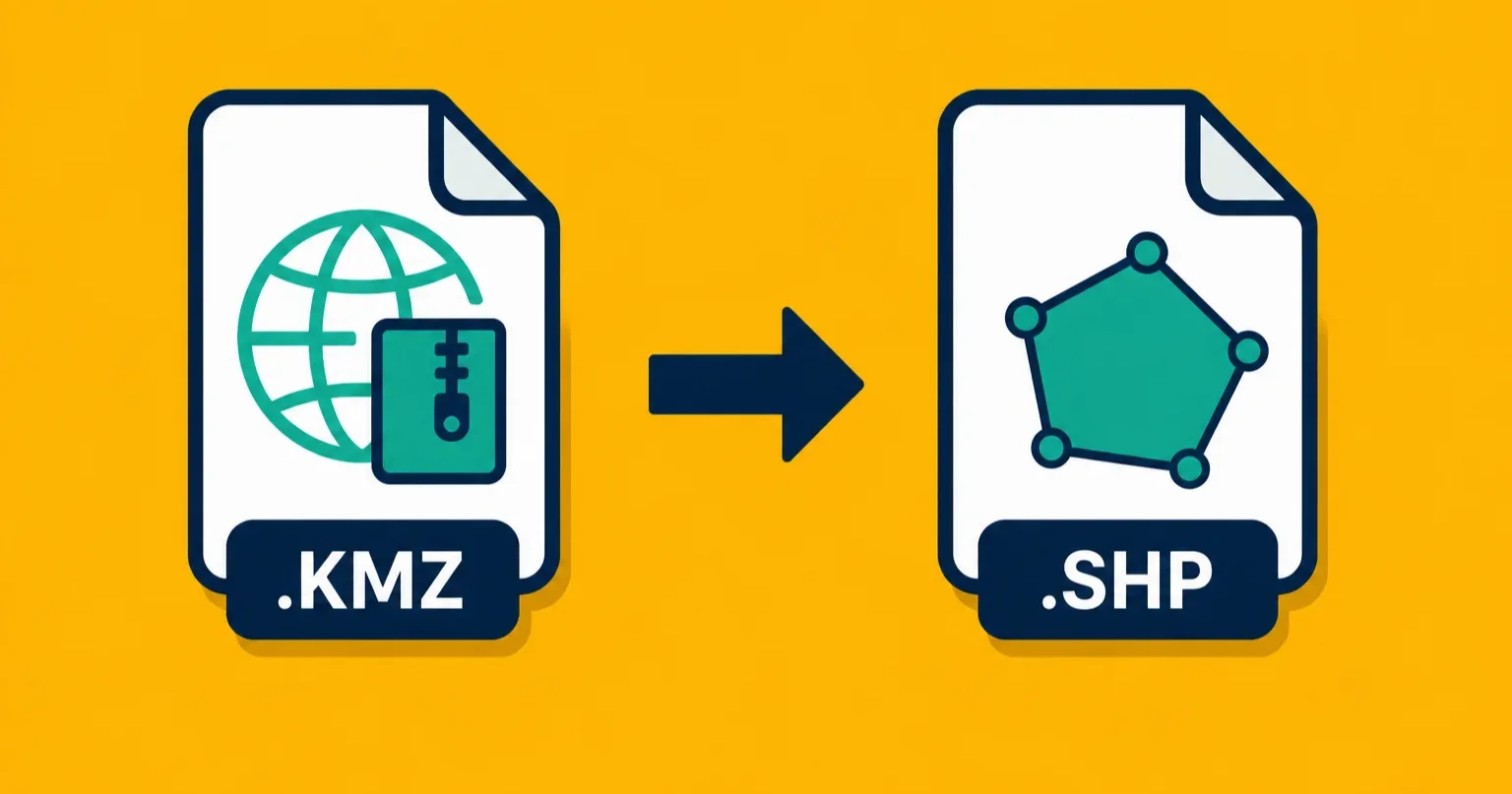
KMZ files usually come from Google Earth. Someone drew boundaries, dropped pins, or compiled site data, saved it as KMZ, and now you need it as a Shapefile for GIS software, a government submission, or a colleague's workflow. The conversion is straightforward once you understand what KMZ actually is.
KMZ is a zipped KML
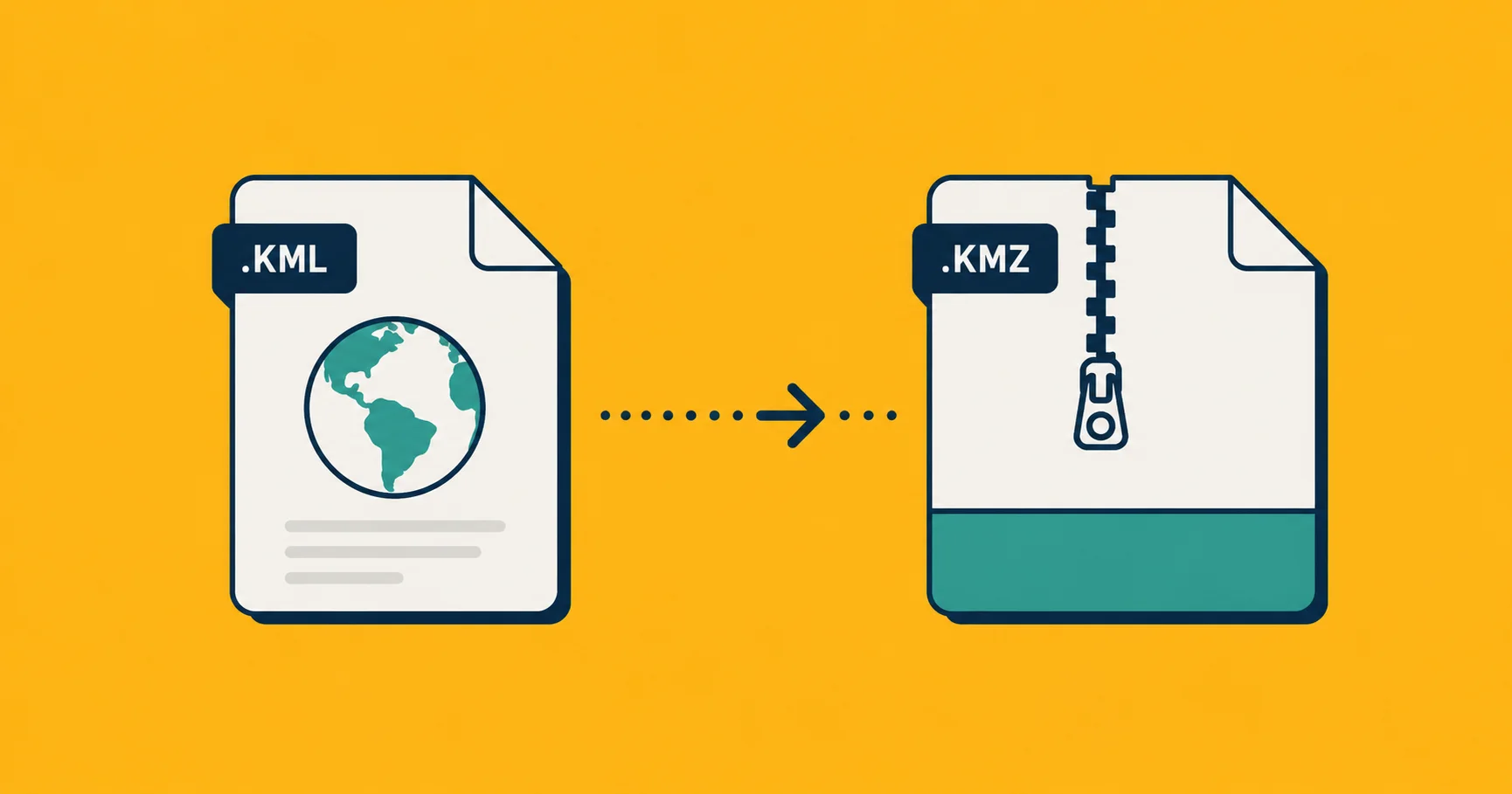
A KMZ file is a KML file in a zip archive. The zip can also contain images, icons, and other assets that are referenced by the KML inside. When you unzip a KMZ, you find a doc.kml file at minimum, and sometimes a folder of photos or overlay images alongside it.
This matters for conversion because the path from KMZ to Shapefile is really KMZ, unzip, KML, Shapefile. Most tools handle this transparently, but understanding the structure helps when something goes wrong.
For a deeper look at the difference between the two formats, see KMZ vs KML.
Method 1: Georaf (web browser, no install)
Georaf accepts KMZ files directly. You don't need to unzip the file first or do any preparation. Upload the KMZ, and Georaf handles the unpacking and conversion, returning a zipped Shapefile bundle ready for GIS software.
This is the fastest option if you don't have tools installed and just need the conversion done. Georaf also checks the file for issues before converting, so if the KMZ has geometry problems or entries that won't survive the conversion cleanly, you'll see that reported rather than discovering it later when the Shapefile behaves unexpectedly.
The output is a zip containing the standard Shapefile components: .shp (the geometry), .dbf (the attribute data), .shx (an index), and .prj (the coordinate system definition).
Method 2: ogr2ogr (command line)
ogr2ogr is a free, open-source conversion tool that handles KMZ directly without any intermediate step. It's part of the GDAL library, available at gdal.org or via a package manager.
ogr2ogr -f "ESRI Shapefile" output.shp input.kmz
That's it. ogr2ogr reads the KMZ, extracts the geometry and attributes from the KML inside, and writes a Shapefile. If your KMZ contains multiple geometry types (points, lines, and polygons mixed together), ogr2ogr will produce separate output files for each type automatically.
For large files, batch conversion of multiple KMZ files, or scripted workflows where you need conversion to happen automatically, ogr2ogr is the right tool. It's more setup than a web tool but much more capable for repetitive or large-scale work.
On Mac you can install it with Homebrew:
brew install gdal
On Windows, the easiest path is the OSGeo4W installer.
Method 3: Manual unzip, then convert
If you prefer to see what's inside the KMZ before converting, you can do it in two steps.
Step 1: Rename .kmz to .zip and extract. Change the file extension from .kmz to .zip, then unzip it normally. You'll find a doc.kml file (and possibly other files in a subdirectory). On Mac you can also right-click the KMZ and use a tool like The Unarchiver.
Step 2: Convert the KML to Shapefile. Now you have a plain KML file. Use any of the methods in the KML to Shapefile guide: Georaf, ogr2ogr, or QGIS.
The manual route is useful when you want to inspect the KML contents first, or when you need to edit the KML before converting. It's more steps, but nothing complicated.
What gets lost in the conversion
Shapefile is an older format with some real limitations. Knowing what won't survive the conversion helps you plan accordingly.
Photos embedded in the KMZ are not transferred. This is the biggest one. KMZ files can contain photos attached to individual entries, aerial imagery overlays, or custom icons. Shapefile format has no mechanism for storing images. After conversion, those photos are gone from the output file. If your KMZ contains field photos that matter, keep the original KMZ as your archive. The converted Shapefile will have the geometry and text attributes, but not the images.
If preserving photos is important, consider whether Shapefile is actually the right output format. GeoJSON can't store images either, but a KMZ or a GeoJSON paired with a separate photo folder may serve you better. It depends on what you need to do with the data.
KML styling doesn't carry over. KML stores colors, line weights, fill opacity, and icon choices as part of the file. Shapefile stores geometry and attributes only. The visual styling has to be reapplied in whatever software opens the Shapefile.
Field names truncate to 10 characters. KML attributes can have long names. Shapefile limits attribute field names to 10 characters. "SiteDescription" becomes "SiteDescri" and "InspectionDate" becomes "Inspection". If you have many similarly named fields, they may become indistinguishable. Rename fields before converting if this will be a problem.
Mixed geometry types split into separate files. If the KMZ contains both polygon boundaries and point markers, the Shapefile output will be multiple files, one for each geometry type. This isn't data loss, but it can be unexpected.
Special characters in text fields can get mangled. KML is UTF-8 throughout, which handles accented letters and non-Latin scripts. Shapefile attribute encoding is less standardized. After conversion, check any text fields that contain characters beyond plain ASCII.
Choosing a method
For a one-off conversion without installing anything, Georaf handles the full process and gives clear feedback if something's wrong with the file. For large files, many files, or automated workflows, ogr2ogr is the right tool. The manual unzip method is worth knowing when you want to inspect or edit the KML before it becomes a Shapefile.
Whichever method you use, keep the original KMZ if it contains photos or styling that might matter later. The Shapefile holds the geometry and the text data. Everything else stays behind.