 Georaf Team
ogr2ogr for Beginners: The Only Commands You Actually Need
ogr2ogr is the Swiss Army knife of geodata conversion. Here are the five commands that cover 90% of real-world use, explained without assuming you know GDAL.
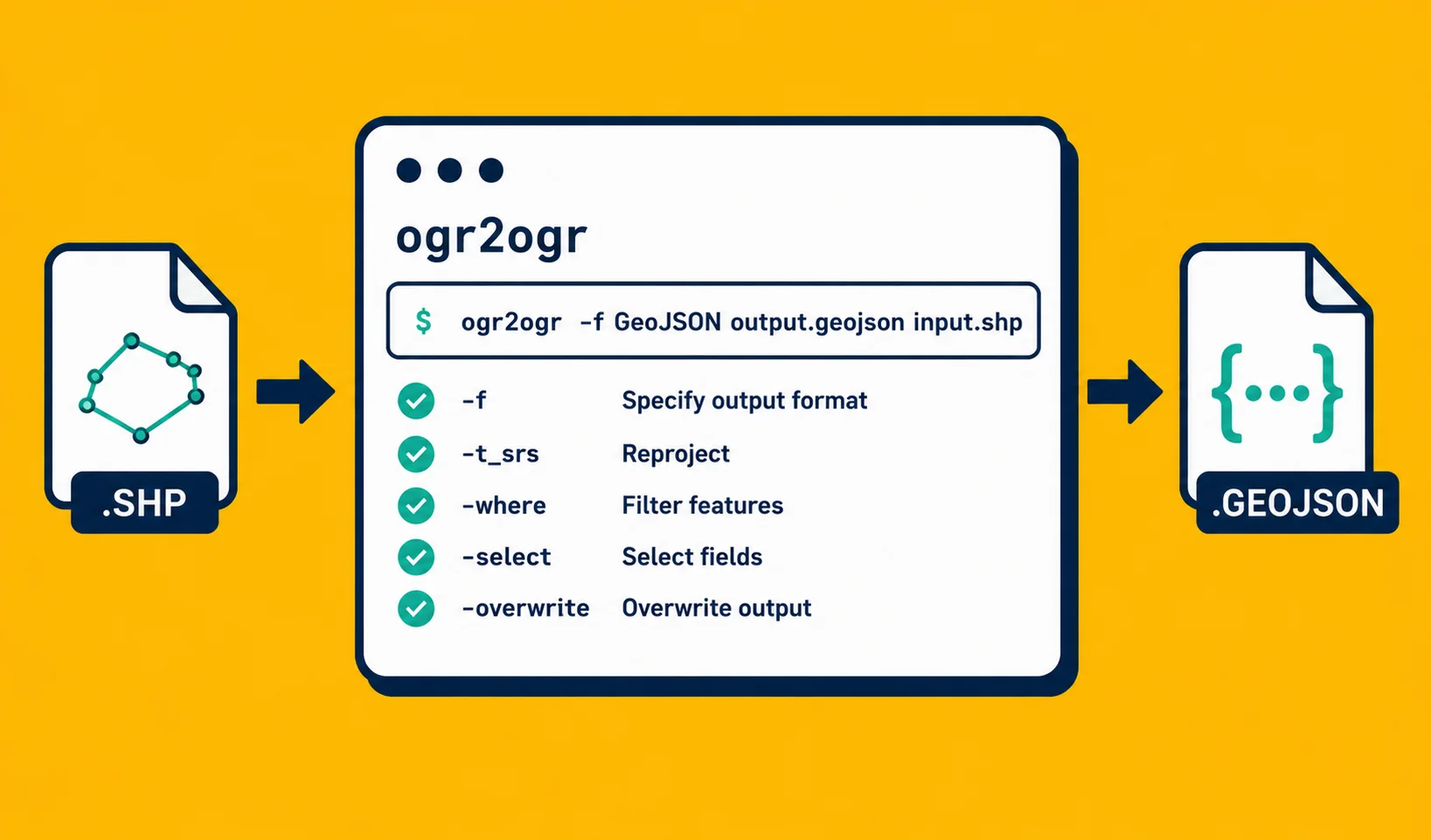
If you've spent more than five minutes trying to convert a geodata file, someone has probably told you to "just use ogr2ogr." They're right, but they usually stop there, which is annoying if you don't know what ogr2ogr is, where it lives, or what the command actually looks like.
This guide is the explanation they didn't give you.
What ogr2ogr actually is
ogr2ogr is a command-line tool for converting geodata files between formats. When you run QGIS, ArcGIS, or most other desktop GIS tools and tell them to "Save As" a different format, ogr2ogr is what they call under the hood. It's part of a library called GDAL (Geospatial Data Abstraction Library), which is the shared conversion engine for essentially all serious open-source geodata work.
You don't need to know what GDAL is to use ogr2ogr. You just need to know one quirk (see below), five commands, and where the gotchas are.
How to install it
Mac (with Homebrew):
brew install gdal
Linux (Debian/Ubuntu):
sudo apt install gdal-bin
Windows: The easiest route is to download the GDAL binaries from GISInternals or install it through OSGeo4W. QGIS also ships with GDAL, so if you already have QGIS, you might already have ogr2ogr available in the OSGeo4W shell.
After installing, run ogr2ogr --version to confirm it worked. You should see something like GDAL 3.x.x.
The one quirk you need to know first
ogr2ogr puts the output file before the input file. This is the opposite of most tools and trips up almost everyone on the first attempt.
ogr2ogr output.geojson input.kml   # correct
ogr2ogr input.kml output.geojson   # wrong, will mangle your file
Read it as: "ogr2ogr, make this output, using this input." Get that order in your head and you're most of the way there.
The five commands you'll actually use
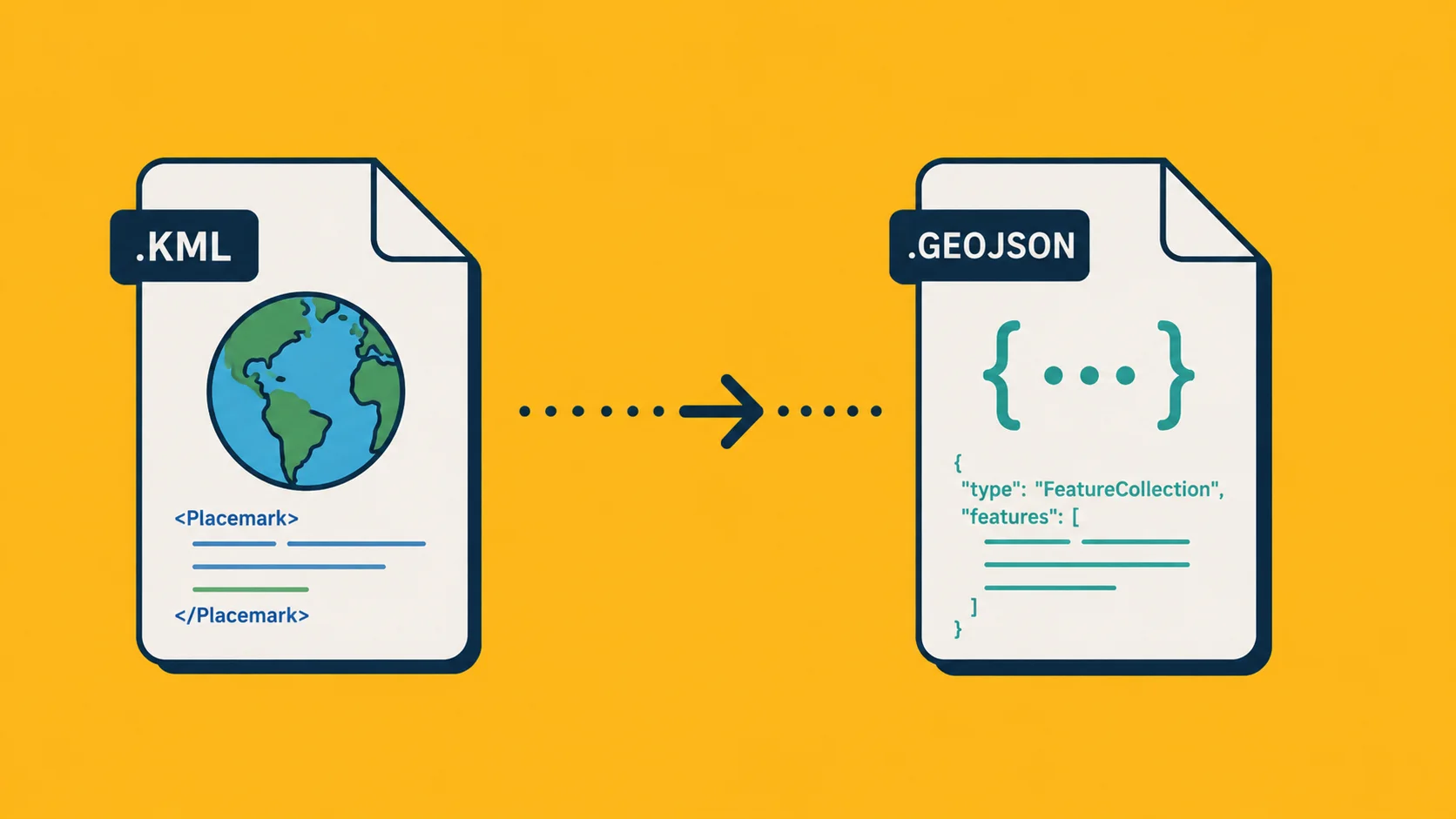
1. KML or KMZ to GeoJSON
KML is the format Google Earth uses. If you exported something from Google Earth or received a .kml or .kmz file, this converts it to GeoJSON:
ogr2ogr -f GeoJSON output.geojson input.kml
KMZ is just a zipped KML, and ogr2ogr handles it the same way:
ogr2ogr -f GeoJSON output.geojson input.kmz
More detail on this conversion: Convert KML to GeoJSON.
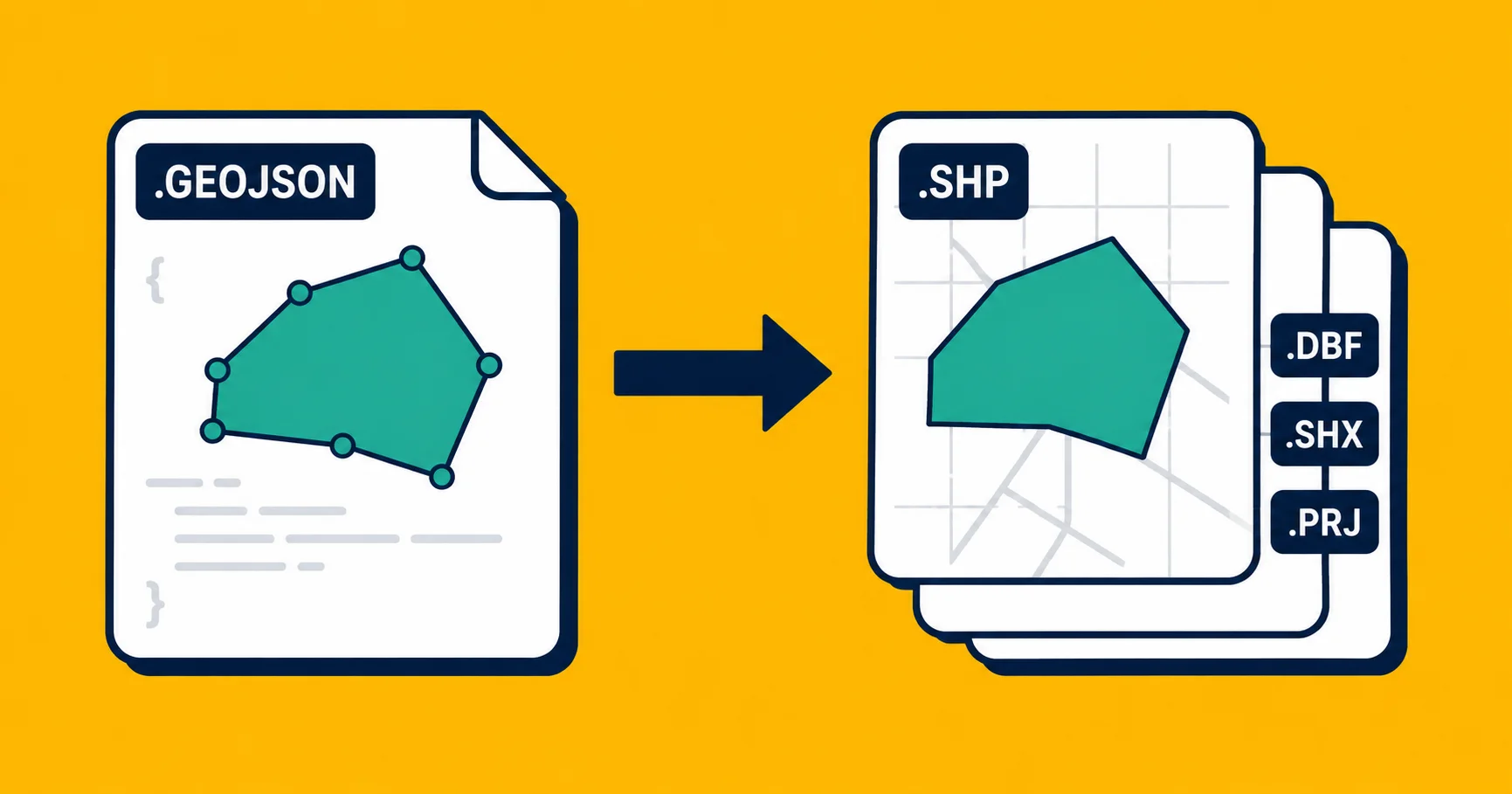
2. GeoJSON to Shapefile
Shapefiles are the format that older GIS tools and a lot of government data portals expect. A Shapefile is actually a bundle of files (.shp, .dbf, .prj, and others), so you output to a folder, not a single file:
ogr2ogr -f "ESRI Shapefile" output_folder/ input.geojson
Note the quotes around "ESRI Shapefile". The format name must be exact. See the gotchas section below.
For more on what you'll get and what to watch out for: Convert GeoJSON to Shapefile.
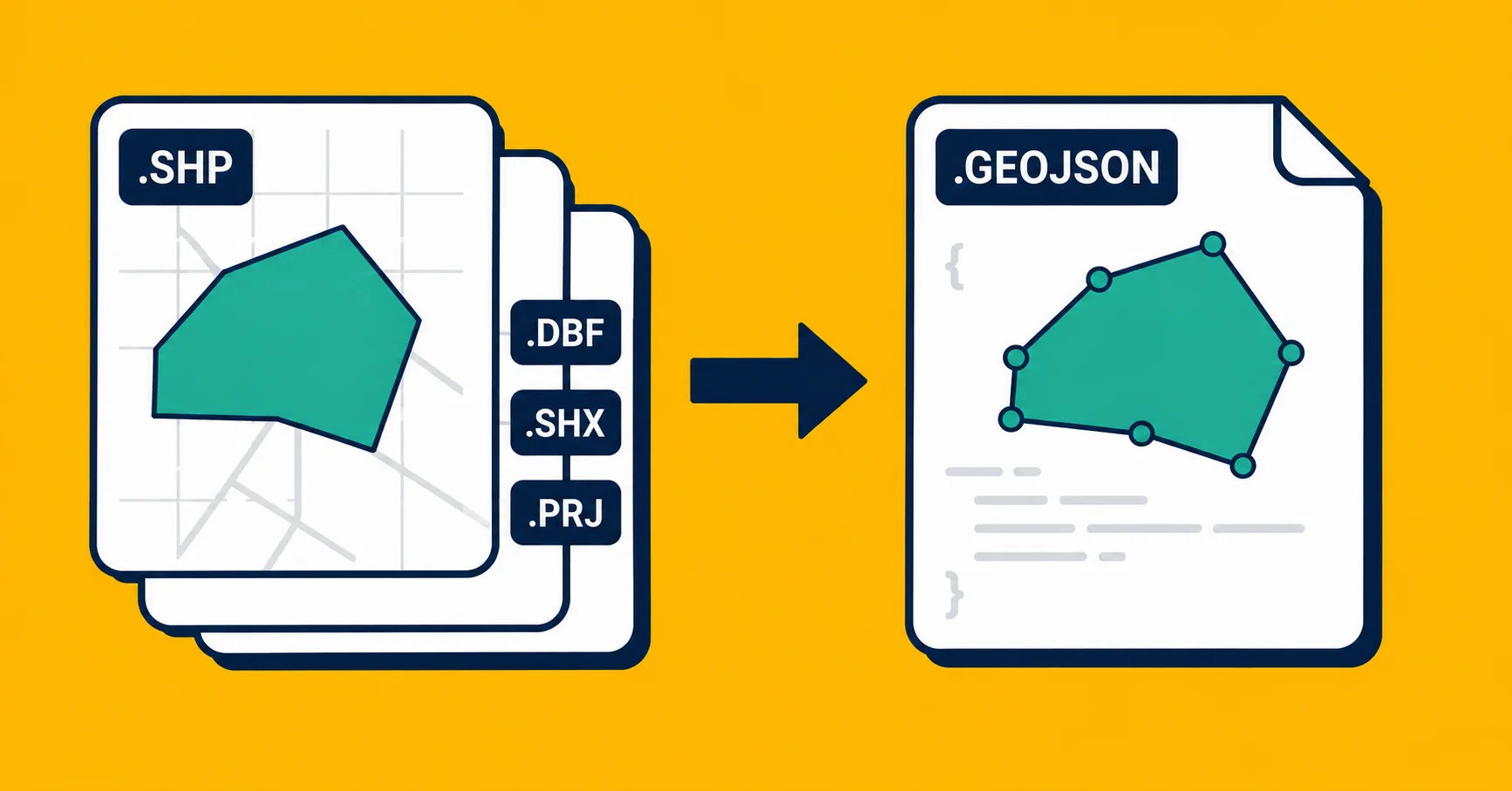
3. Shapefile to GeoJSON
The reverse. Point ogr2ogr at the .shp file in the Shapefile bundle:
ogr2ogr -f GeoJSON output.geojson input.shp
For detail on what survives the conversion: Convert Shapefile to GeoJSON.
4. Reproject coordinates to WGS 84
Geodata uses different coordinate systems. The standard system for web maps (and for GeoJSON specifically) is WGS 84, identified by the code EPSG:4326. If your file was created in a local or national coordinate system, the coordinates are numbers like 5234183, 3451029 instead of -0.1276, 51.5074. These won't place correctly on a map.
The fix:
ogr2ogr -f GeoJSON -t_srs EPSG:4326 output.geojson input.shp
-t_srs EPSG:4326 means "target spatial reference system: WGS 84." The tool reads the source coordinate system from the file's projection information and converts to WGS 84.
If the source file doesn't declare its coordinate system (this happens with hand-written files), you can specify it manually with -s_srs:
ogr2ogr -f GeoJSON -s_srs EPSG:27700 -t_srs EPSG:4326 output.geojson input.shp
EPSG:27700 is British National Grid, as an example. Swap it for whatever coordinate system your source data actually uses.
5. Batch convert a folder of files
This is where ogr2ogr stops being a one-off tool and becomes a pipeline component. A shell loop converts an entire folder:
Mac/Linux (bash):
for f in input_folder/*.kml; do
  ogr2ogr -f GeoJSON "output_folder/$(basename "$f" .kml).geojson" "$f"
done
Windows (PowerShell):
Get-ChildItem input_folder\*.kml | ForEach-Object {
  ogr2ogr -f GeoJSON "output_folder\$($_.BaseName).geojson" $_.FullName
}
This processes every .kml file in input_folder and writes a corresponding .geojson to output_folder. Replace .kml with .shp or .kmz as needed.
Common gotchas
The format names are exact and specific. The -f flag takes format strings that are not forgiving:
"ESRI Shapefile"not"Shapefile"and not"shapefile""GeoJSON"not"geojson"and not"GEOJSON""KML"not"kml"
If you get an error like Unable to find driver ESRI shapefile, check your capitalisation and spacing first.
Error messages are cryptic. ogr2ogr inherits GDAL's error messages, which were written for people who already know what they mean. ERROR 1: PROJ: proj_create_from_database: Cannot find proj.db means your GDAL install is incomplete, not that your file is wrong. ERROR 4: Unable to open datasource usually means you got the filename wrong or the file doesn't exist where you think it does.
When you're stuck, the most useful debugging step is to run:
ogrinfo input.shp
ogrinfo is included with GDAL and will tell you what it can read from the file without trying to convert it. If ogrinfo can't read it, the conversion won't work either.
Shapefile column names get truncated. The Shapefile format limits column names to 10 characters. If your GeoJSON has a column called population_count, it becomes population or populatio_1 in the Shapefile. This is a format limitation, not a bug. If you need long column names, stay in GeoJSON.
The output file overwrites without warning. Run the same command twice and it silently replaces the first output. If you need to keep previous versions, rename or move them first.
When not to use ogr2ogr
ogr2ogr is the right tool for batch conversions and scripted pipelines. It's less right for one-off jobs where the overhead isn't worth it.
If you have one file and you need it converted now, a browser-based converter is faster than installing GDAL. Georaf converts GeoJSON, KML/KMZ, and Shapefiles without any install, and it runs a health check on the file at the same time so you know if anything is broken before you use the output.
If you need to see what's wrong with a file, ogr2ogr gives you almost no diagnostic information. It converts what it can and silently drops what it can't (or errors out entirely). It has no equivalent of a health report. For that, Georaf's health check tells you in plain English what the problem is and which entries are affected.
If you need an API endpoint, ogr2ogr is a local command-line tool. It doesn't expose an HTTP endpoint. Georaf's API does the same conversion and validation over REST if you need to plug it into a web application or cloud workflow.
A cheat sheet
# KML/KMZ to GeoJSON
ogr2ogr -f GeoJSON output.geojson input.kml

# GeoJSON to Shapefile
ogr2ogr -f "ESRI Shapefile" output_folder/ input.geojson

# Shapefile to GeoJSON
ogr2ogr -f GeoJSON output.geojson input.shp

# Reproject to WGS 84 (EPSG:4326)
ogr2ogr -f GeoJSON -t_srs EPSG:4326 output.geojson input.shp

# Inspect a file without converting
ogrinfo input.shp

# Batch convert KML folder to GeoJSON (bash)
for f in *.kml; do ogr2ogr -f GeoJSON "${f%.kml}.geojson" "$f"; done
Wrapping up
ogr2ogr covers an enormous amount of ground. For batch work and pipelines, there's nothing better in the open-source world. For one-off jobs or when you need to understand what's wrong with a file, reach for something with a visual interface instead.
The two approaches aren't in competition. A lot of people use ogr2ogr for bulk conversion and Georaf for the individual files that need inspection or repair. Use the right tool for each job.